
Your dashboard at nerdyt.ag/dashboard is where you build and manage your profile. Here's what you'll find in each part of it.
The main screen
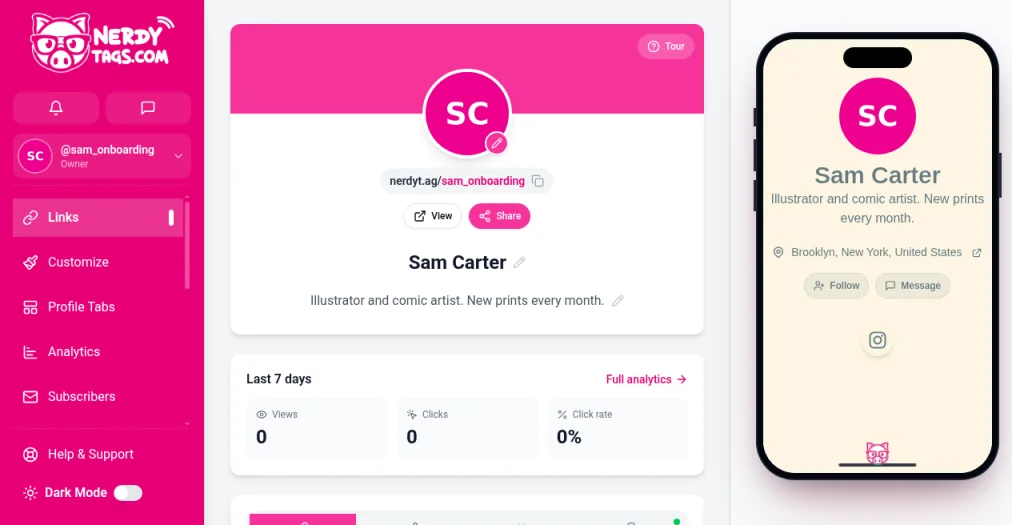
The Links page opens first. At the top is your profile card with your photo, your profile address (with a copy icon), View and Share buttons, and your title and bio, each with a pencil icon for editing. Below that, Last 7 days shows your views, clicks and click rate, with a Full analytics link.
While your profile is new, a Finish your profile checklist sits between the profile card and Last 7 days. It tracks six steps (photo, title, bio, first link, a social account and your location) and disappears on its own once they're all done. Getting started with NerdyTags walks you through each one.
On a computer, a phone preview beside the dashboard shows your profile the way visitors see it. On a phone or in the NerdyTags app, tap the preview button (the phone icon) and the preview pops up over the page. The Tour button starts a guided walkthrough whenever you want a refresher.
The sidebar
Sidebar item | What it's for |
|---|---|
Links | Add, edit, group and reorder links. Tabs for Links, Socials, Widgets and Location. |
Customize | Templates, colors, banner, background, fonts and buttons. |
Profile Tabs | Add About, Events, Gallery, Games and Achievements tabs to your profile. |
Analytics | Impressions, clicks, QR scans, NFC taps, traffic sources and more. |
Subscribers | Your email list, integrations and the signup widget. |
QR & NFC | Get a QR code or write your link to an NFC tag. |
Connections | Your followers and the people you follow. |
Discover | Browse and search other NerdyTags creators. |
Store | Official NerdyTags NFC tags, cards and accessories. |
Billing | Your plan, premium pages and invoices. |
Settings | Account, profile, privacy and integration settings. |
At the bottom of the sidebar you'll find Help & Support (this help center), a Dark Mode switch and Logout.
Notifications and messages
The two icons at the top of the dashboard open Notifications (the bell) and Messages (the speech bubble). Notifications cover things like new followers and subscribers. Messages is where you chat with people you follow.
Switching profiles
Click your @handle near the top of the sidebar to open the account menu.
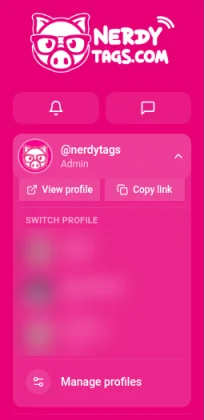
From here you can:
Click View profile or Copy link for the profile you're working on.
Pick another profile under SWITCH PROFILE.
Click Manage profiles to create profiles and invite admins.
Everything on the dashboard applies to the profile that's selected, so check the @handle before you make changes. See Managing multiple profiles and profile admins.