
Welcome to NerdyTags. This guide takes you from a brand new account to a profile you can share, and most people finish it in about five minutes.
Create your account
Go to nerdyt.ag/register.
Choose a username. It becomes your profile address, for example nerdyt.ag/yourname.
Sign up with your email, or use one of the social sign-in options on the page.
You can change your username later in Settings > Profile (once every 7 days), but doing so changes your profile URL. Links you've shared, QR codes you've printed and NFC tags you've programmed will stop working, so pick one you're happy to keep.
The five-step setup
When you set up a new profile, NerdyTags walks you through a short setup with five steps: About you, Look, Socials, Discovery and Done. On a computer, the live preview beside each step shows your page updating as you go.
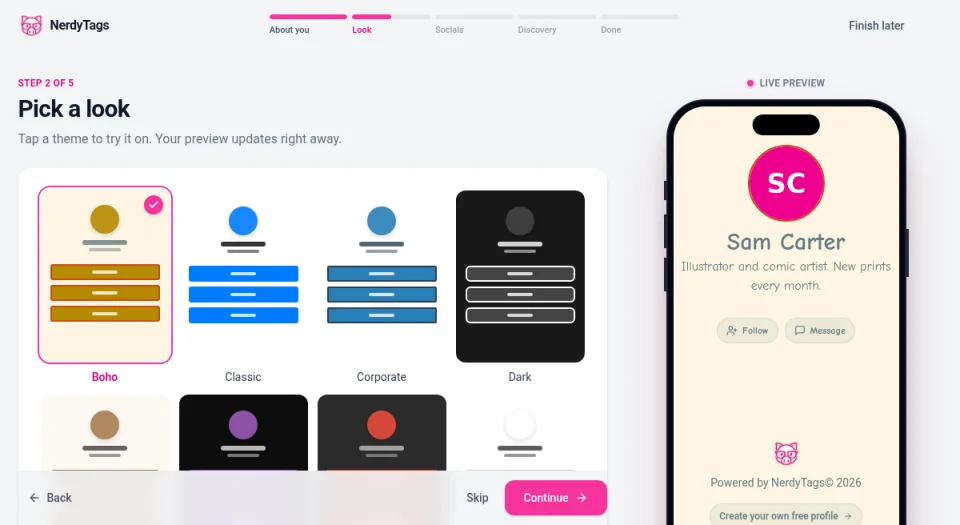
About you: Click Upload photo to add a profile picture, then fill in your Name or title and a short Bio (up to 140 characters).
Look: Tap a theme, such as Boho, Classic, Minimal or Neon, to try it on. It's only a starting point, and you can change colors, fonts, buttons and backgrounds any time in Customize.
Socials: Click Add social, pick a platform such as Instagram, and paste your username or profile link. The Quick add icons give you a shortcut for popular platforms.
Discovery: Show me in Discover lists your profile in the NerdyTags directory, and it's already on when you reach this step. Your link works either way. You can also add up to 10 Tags for your interests, skills or industry, and turn on Let visitors save my contact to add a Save contact button that downloads your details as a vCard.
Done: Your page is live. Click Copy link to grab your address, View my page to see it the way visitors do, or Go to my dashboard to keep going.
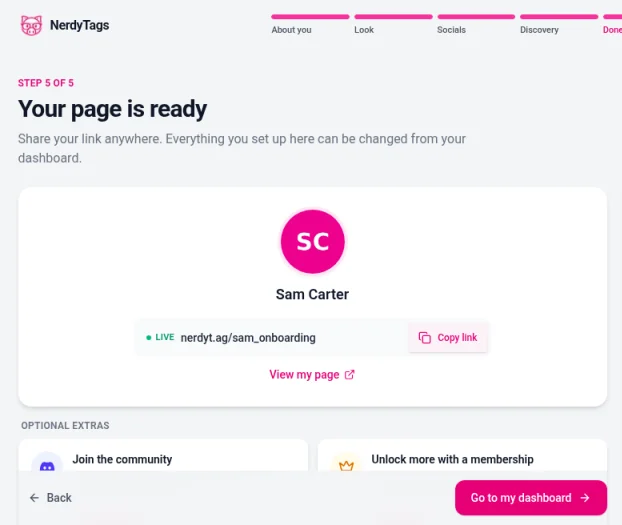
Every step has a Skip button, and Finish later sits at the top of the page if you'd rather stop for now. Anything you set up here can be changed from your dashboard. If you land on your dashboard without seeing this setup, that's fine too: the sections below cover the same things.
Finish your profile
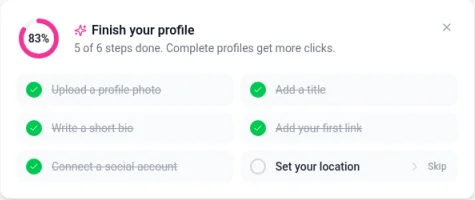
On your dashboard, a Finish your profile checklist sits under your profile card. It has six steps: upload a profile photo, add a title, write a short bio, add your first link, connect a social account and set your location. Whatever you finished during setup is already ticked off, so you might see only a couple of steps left. You can Skip any step, and once all six are done the checklist disappears on its own.
Add a photo, title and bio
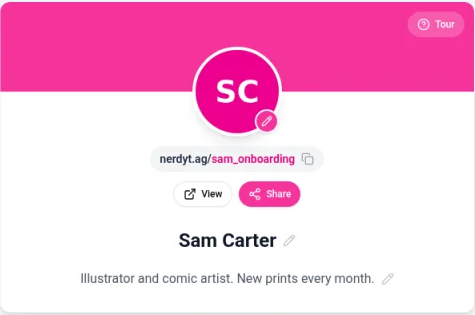
If you skipped these during setup, you'll find all three on the profile card at the top of the Links page.
Click the pencil icon on your profile photo and upload a picture.
Click the pencil next to your title (it says Add a title until you fill it in) and type the name visitors should see.
Click the pencil next to the bio line and write a sentence or two about yourself.
To see how your profile looks to visitors, check the phone preview beside your dashboard on a computer. On a phone or in the NerdyTags app, tap the preview button (the phone icon) to open it.
Add your first links
On the Links page, click Add New Link.
Type a Link Name (the text on the button) and a Link URL.
Look at the switch under the link. If it says Hidden, click it so it says Active. Hidden links don't show on your profile.
Add as many as you like. Links are unlimited on every plan, including Free. For Instagram, TikTok and other social icons, click Quick Add Social or open the Socials tab. Adding your social media links has the details.
Set your location
On the Links page, open the Location tab.
Turn on Display Location so it says Visible.
Fill in your City, State/Province and Country, then click Save Location.
Your location shows on your profile with a map pin. See Showing your location on your profile.
Change your theme
The look you picked during setup is just a starting point. To try a different one:
Click Customize in the sidebar.
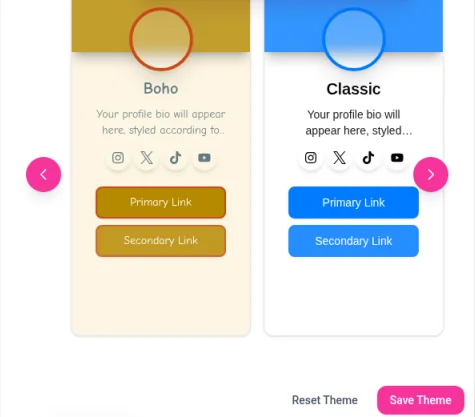
On the Templates tab, use the arrows to browse templates such as Classic, Minimal, Neon and Retro, then click the one you like.
Click Save Theme.
The first time you open Customize, a short guided tour shows you around. You can fine-tune colors, fonts, buttons and backgrounds whenever you like. See How to customize your profile theme.
Share your link
Your profile is live at nerdyt.ag/yourname right away. To get it in front of people:
Click the copy icon next to your profile address on the profile card, then paste it into your Instagram, TikTok or other bios.
Click View to open your live profile, or Share to share it.
For sharing in person, open QR & NFC in the sidebar to get a QR code or write your link to an NFC tag. See Sharing your profile with a QR code.
Good to know
The Tour button on the profile card restarts the dashboard tour at any time.
Stuck on something? Click Help & Support in the sidebar or email [email protected].