
You can show a location on your profile, such as "Houston, Texas". It appears with a map pin icon. Your location is hidden until you turn it on.
Add your location
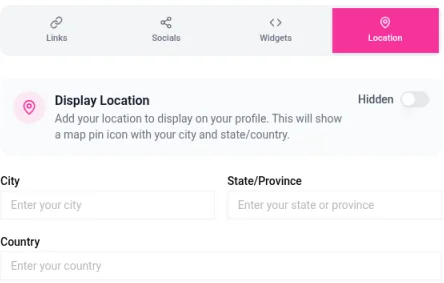
Open the Links page in your dashboard and click the Location tab.
Fill in City, State/Province and Country. You can leave out any you don't want to share.
Turn on Display Location. While it's off, the switch reads Hidden.
Click Save Location.
Your profile shows a map pin with your city and state, or your country. Check the phone preview to see how it looks (on a phone or in the app, tap the preview button to open it).
Hide or remove your location
To hide it but keep the details saved, turn off Display Location and click Save Location.
To remove it, click Clear, then Save Location.
Good to know
Your location is shown on your public profile, so anyone who visits can see it. A city or region is usually enough.
Setting a location is one of the steps in the Finish your profile checklist on your dashboard.
Location is set per profile. If you manage more than one profile, switch to the right one first.