
You can show content from other sites right on your profile, so visitors can watch, listen or read without leaving. There are two ways to do it:
Auto-embeds (all plans): NerdyTags turns links from popular platforms into playable content.
Widgets (Pro and Business): add your own HTML code, such as an embed code from another site, and choose where it appears.
Auto-embeds (all plans)
Paste a link from a supported platform and it becomes a playable embed on your profile. Supported platforms are:
Category | Platforms |
|---|---|
Video | YouTube, TikTok, Vimeo, Twitch |
Music | Spotify, Apple Music, SoundCloud, Mixcloud |
Social | Instagram, X |
Maps | Google Maps |
After you add a link from one of these platforms, check the phone preview to see how it looks. On a computer the preview sits beside the dashboard. On a phone or in the NerdyTags app, tap the preview button (the phone icon) to open it.
Widgets (Pro and Business)
A widget is a block of custom HTML on your profile. Use one when a platform gives you an embed code, for example to embed a post from X or a YouTube Short, or when you want something a link can't do.
Add a widget
Open the Links page in your dashboard and click the Widgets tab.
Click Add Widget (or Create Your First Widget if you don't have any yet).
Give it a Widget Name so you can recognize it later.
Click HTML Code and paste or type your code.
Choose a Placement (see below).
Turn on the switch so it reads Enabled. While it reads Disabled, the widget is hidden from your profile.
Choose where it appears
Placement | Where the widget shows |
|---|---|
After Links | After your links |
At Specific Link Position | Between your links, at the spot you choose |
Bottom | At the bottom of your profile |
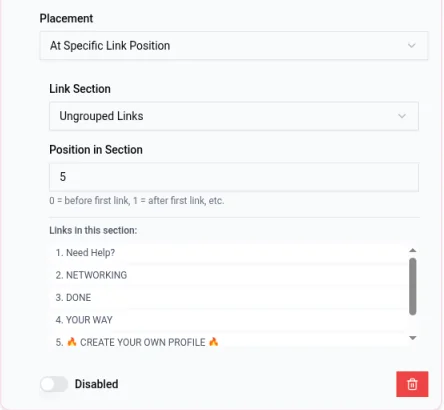
For At Specific Link Position, pick the Link Section (a group, or Ungrouped Links), then enter the Position in Section. 0 puts the widget before the first link, 1 after the first link, and so on. The list under Links in this section helps you count.
Remove a widget
Click the red trash icon on the widget, then click Confirm Delete. To hide a widget for now without losing it, switch it to Disabled instead.
Tips
Copy embed codes from the platform's own share or embed option, and paste them exactly as given.
Keep widgets light. Large embeds can make your profile slower to load on phones.
Only paste code from sources you trust.
Widgets work on profiles you've turned on as premium pages. See What are premium pages?