
Social links show as icons on your profile, so people can follow you on the platforms you use. They're separate from your link buttons, and they're unlimited on every plan.
Add a social link
Open the Links page in your dashboard and click the Socials tab.
Click Add social.
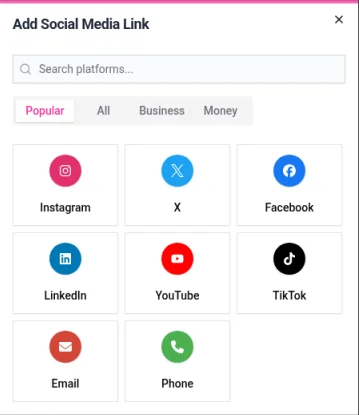
Find the platform. Type its name in Search platforms... or browse the Popular, All, Business and Money categories.
Pick the platform and enter your username for it.
Click the add button, for example Add Instagram.
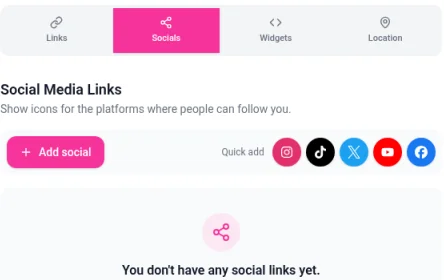
For the most common platforms, use the Quick add icons next to the button: Instagram, TikTok, X, YouTube and Facebook.
You can also add a social link from the Links tab. Click Quick Add Social under Add New Link to open the same platform picker.
Manage your social links
Each social link you add gets its own card on the Socials tab.

Active switch: turn it off to hide the icon from your profile without removing it.
Shield icon: turns on age restriction, so visitors confirm their age before opening that link. Available on all plans.
Chart icon: opens analytics for that social link.
Arrows on the left: drag the card to change the order of your icons.
Trash icon: removes the social link. Click Confirm to finish.
Change a social link
Social links can't be edited once they're added. To change the username, remove the social link with the trash icon, then add it again with the right details.
Email and phone
The platform picker also includes Email and Phone, so visitors can contact you with one tap. Only add contact details you're comfortable sharing publicly.
Change how social icons look
Social icon styling is part of your theme:
Customize > Buttons sets where your social links appear on your profile and their style.
Customize > Colors sets the social icon color and the social button color.
Click Save Theme when you're done. See How to customize your profile theme.
Troubleshooting
An icon goes to the wrong account. Check the username on its card. If it's wrong, remove the social link and add it again.
I can't find a platform. Try the All category or search for it by name. If it isn't listed, add it as a regular link with Add New Link instead.