
Profile tabs add extra pages to your profile, like an About section or a list of events. When you turn on at least one tab, visitors see a tab bar above your links.
Turn tabs on
Click Profile Tabs in the sidebar of your dashboard.
Turn on the switch next to each tab you want.
To rename a tab, change its name in the list.
Drag tabs to change their order.
The Links tab is always shown first, so your links stay front and center.
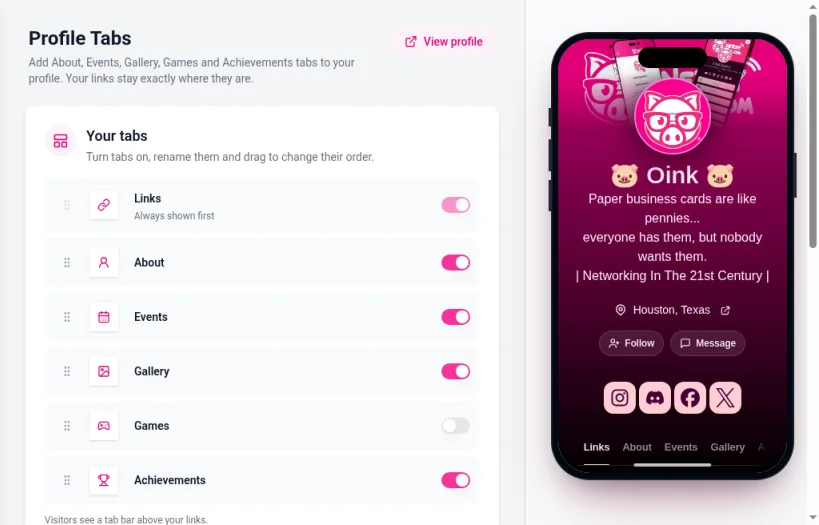
Below the list, a tab for each section (About, Events, Gallery, Games and Achievements) holds its settings.
Available tabs
Tab | What it shows | Plan |
|---|---|---|
Links | Your link buttons. Always shown first. | All plans |
About | A longer bio and quick facts about you | All plans |
Events | Your upcoming events, with dates, venues and ticket links | Pro and Business |
Gallery | Up to 50 of your photos | Pro and Business |
Games | The games you play, with box art | All plans |
Achievements | Badges you've earned on NerdyTags | All plans |
The Events and Gallery tabs work on profiles you've turned on as premium pages. See What are premium pages?
Set up your About tab
Turn on the About tab.
Write an Extended bio. This is the place for anything that doesn't fit in your short bio.
Under Quick facts, click Add fact for each fact you want to show, like where you're based or what you stream.
Click Save About.
Set up your Events tab (Pro and Business)
Open the Events section and click Add event.
Add a cover image, a title and the event details.
Set the start and end date and time, or mark it as all-day, and choose the time zone. Visitors see event times in their own time zone.
Add the venue or city, an event URL, and a ticket link with its button if you're selling tickets.
Choose your RSVP settings and save the event.
Set up your Gallery tab (Pro and Business)
Open the Gallery section and click Add photos. You can upload several photos at once, up to 50 in total. Photos go through automatic content checks before they appear.
Set up your Games tab
Show fans what you play.
Open the Games section.
Search for a game in Search games to add... and add it. Box art is added for you, using game data from IGDB.
Add up to 30 games.
Mark the games you're into right now as Playing now to pin them to the top.
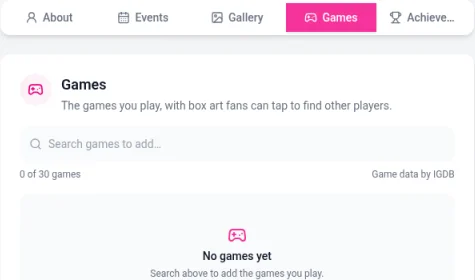
Visitors can tap a game on your profile to find other players.
Achievements tab
There's nothing to set up. NerdyTags awards badges automatically, checking once a day. Only the highest level of each badge is shown, with a count such as "9 of 27 earned". Turn on the tab to show your badges to visitors.
Tips
Keep tab names short so the tab bar fits on a phone screen.
Only turn on tabs you plan to keep up to date. An empty Events tab can make a profile look inactive.