
NerdyTags can tell you when something happens on your profile, like a new follower, a message or a contact form submission. You choose what you hear about and how.
See your notifications
Click the bell icon at the top of your dashboard to open Notifications.

Switch between All and Unread.
Click Follow Back on a new follower to follow them too.
Click Load more to see older notifications.
The gear icon opens your notification settings.
Choose your notifications
Go to Settings > Account and scroll to the notifications section, or click the gear icon on the Notifications page.
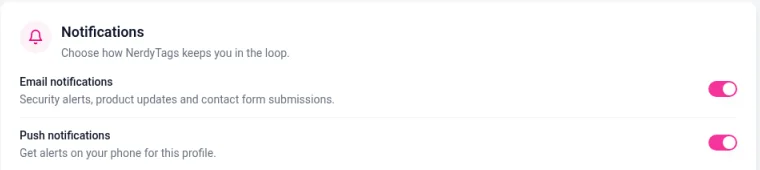
Email notifications
Email notifications cover security alerts, product updates and contact form submissions.
Each contact form also sends its submissions to the Notification Email you set on the form, and they appear on your Notifications page. See Link options: styles, galleries, scheduling, passcodes and contact forms.
Push notifications
Push notifications send alerts to your phone for the profile you're working on. If you manage several profiles, set them up on each one.
Under SEND ME PUSH NOTIFICATIONS FOR, choose which events you want alerts for:
Setting | When you get an alert |
|---|---|
New followers | Someone follows your profile |
Messages | Someone sends you a message |
New subscribers | Someone joins your email list |
Form submissions | Someone fills out one of your contact forms |
Weekly recap | Your views, clicks and new followers, every Monday |
For push alerts on your phone, install the NerdyTags app from the App Store or Google Play and allow notifications when it asks.
Not getting notifications?
Check that the right switches are on in Settings > Account, and that you're on the right profile.
For push alerts, check that your phone allows notifications from NerdyTags.
For emails, check your spam folder and add [email protected] to your contacts.