
Two-factor authentication (2FA) adds a second step when you sign in. After your password, you enter a code from an authenticator app on your phone. Even if someone learns your password, they can't get in without that code. It's available on every plan.
Before you start
Install an authenticator app on your phone, such as Google Authenticator, Microsoft Authenticator or 1Password.
Turn on 2FA
In your dashboard, go to Settings > Account and open Password & login activity. You can also go straight to nerdyt.ag/dashboard/security.
In the Two-Factor Authentication card, click Enable.
Follow the on-screen steps to connect your authenticator app to NerdyTags.
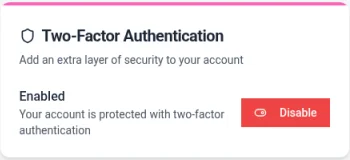
When it's on, the card says Enabled and "Your account is protected with two-factor authentication".
NerdyTags doesn't use backup codes, so keep your authenticator app safe. Many authenticator apps can back up your codes or sync them to a new phone.
Signing in with 2FA
When you sign in, enter your email and password as usual, then open your authenticator app and type the current code for NerdyTags.
Trusted devices
Devices you've trusted don't ask for a 2FA code each time. You'll find them under Trusted Devices on the same page, with the device, IP address, when it was last used and when the trust expires. Remove any device you don't recognize or no longer use from the Actions column.
Turn off 2FA
On the Two-Factor Authentication card, click Disable. We recommend keeping 2FA on, especially if you manage profiles for other people.
Lost access to your authenticator app?
If you get a new phone, delete the app or otherwise can't get a code, email [email protected] from your account email. We'll verify your identity and reset 2FA so you can sign in again. Then turn 2FA back on with your new device.