
Your password and recent sign-ins are on the security page. Open it from Settings > Account > Password & login activity in your dashboard, or go to nerdyt.ag/dashboard/security.
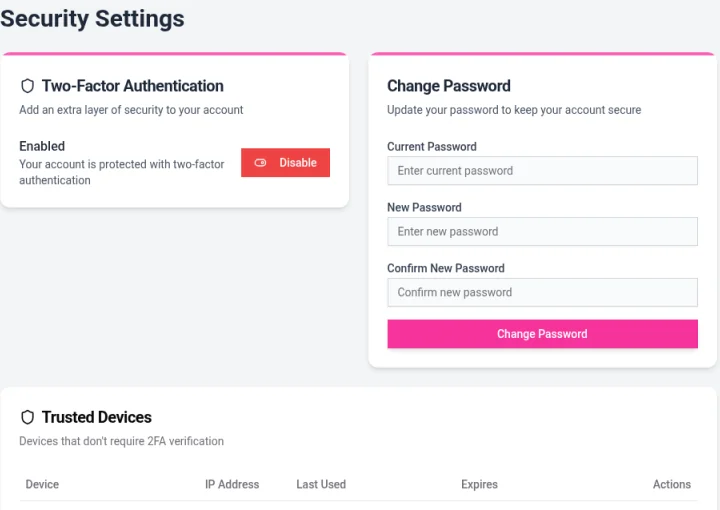
Change your password
Open the security page.
Under Change Password, enter your Current Password.
Enter your New Password, then type it again in Confirm New Password.
Click Change Password.
Use a password you don't use anywhere else. A password manager makes this easy.
Forgot your password?
Go to the sign-in page and click Forgot password?.
Enter your email address and click Send Reset Link.
If an account exists for that email, we'll send you password reset instructions. Open the email and follow the link to choose a new password.
Didn't get the email? Check your spam folder, and make sure you entered the address you signed up with.
If you usually sign in with Google, Apple, Facebook, Discord, Eventbrite or Twitch, use that button on the sign-in page instead.
If you've turned on two-factor authentication and lost access to your authenticator app, email [email protected] from your account email. We'll verify your identity and reset 2FA for you.
Check your login activity
The security page lists recent sign-ins to your account. Click Refresh to load the latest, and use the page buttons to see older ones.
Trusted Devices lists devices that don't need a 2FA code, with the Device, IP Address, Last Used date and when the trust Expires. Remove any you don't recognize from the Actions column.
If something looks wrong
If you see a sign-in or device you don't recognize:
Change your password right away.
Remove unfamiliar trusted devices.
Turn on two-factor authentication. See Turning on two-factor authentication.
Email [email protected] so we can take a look.