
The Profile and Privacy tabs in Settings control how people find and contact one profile. If you manage several profiles, each has its own settings. The top of each tab names the profile you're editing, for example "These settings apply to your @yourname profile". Use the account menu in the sidebar to switch profiles first.
Profile tab
Go to Settings > Profile in your dashboard.
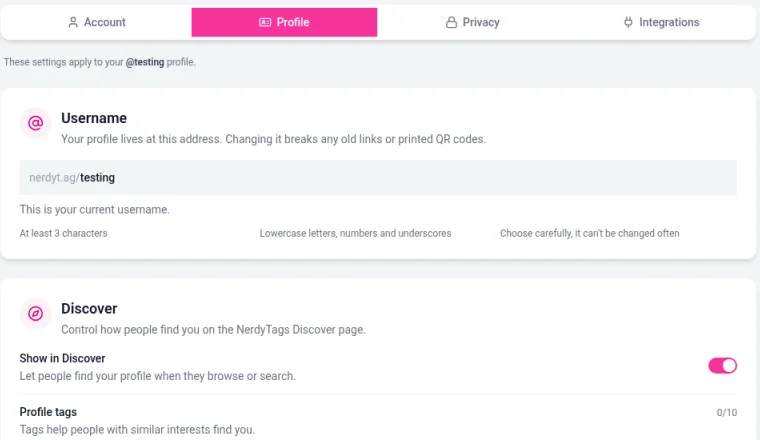
Username
Your username is your profile address, for example nerdyt.ag/yourname. Usernames:
Must be at least 3 characters.
Can use lowercase letters, numbers and underscores.
You can change your username once every 7 days.
Before you change it: changing your username changes your profile URL, and your old address stops working right away. Any links you've shared, QR codes you've printed and NFC tags you've programmed with the old address will no longer work, so plan to update or reprint them.
To change it, type the new username in the field. There's no save button: it saves as you edit, so double-check the spelling.
Discover
These settings control how people find you on the NerdyTags Discover page.
Show in Discover: lets people find your profile when they browse or search. Turn it off to keep your profile out of Discover. People with your link can still visit it.
Profile tags: add up to 10 tags so people with similar interests can find you, for example gaming, art or cosplay.
Digital wallet card
You can add your profile to Apple Wallet or Google Wallet as a digital business card. The card has a QR code people can scan to open your profile, so it's handy at events. Add it from the NerdyTags app on your phone. Get the app from the App Store or Google Play.
Privacy tab
Go to Settings > Privacy.
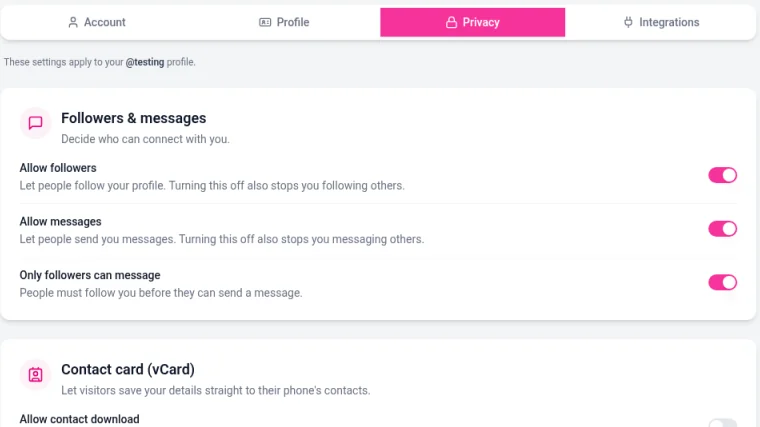
Followers and messages
Setting | What it does |
|---|---|
Allow followers | Lets people follow your profile. Turning it off also stops you following others. |
Allow messages | Lets people send you messages. Turning it off also stops you messaging others. |
Only followers can message | People must follow you before they can send you a message. |
Contact card (vCard)
Turn on Allow contact download to let visitors save your details straight to their phone's contacts. The contact card includes your name, photo, contact info and links. Each download is counted as VCard in Analytics.
Account-wide settings
Your email, language, password and blocked users are on the Account tab and apply to every profile you manage. Your notification settings are on the Account tab too. See Verifying and changing your email address and Managing your notifications.