
If an agency, employer or other company helps run your NerdyTags profile, you can give their team access through NerdyTags Business. You stay the owner the whole time. You choose exactly what they can change, and you can change or remove their access whenever you like.
Find the Organizations page
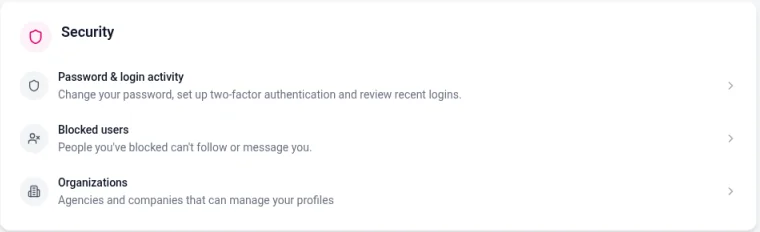
In your dashboard, go to Settings > Account.
Under Security, click Organizations.
You can also go straight to nerdyt.ag/dashboard/organizations.
Give an organization access
To start, the organization sends you a join code, a link or a QR code. Codes look like NT-XXXX-XXXX.
On Organizations, enter the code under Join with a code and click Continue. If you got a link or QR code, open it instead. It takes you to the same page with the code already filled in.
Check who the Access request from is. Only continue if you know and trust them.
Under Which profiles should they manage?, tick the profiles you want them to help with. You can pick more than one.
Under What they can do, untick anything you don't want them to change. Viewing your profile is always included.
Click Give access.
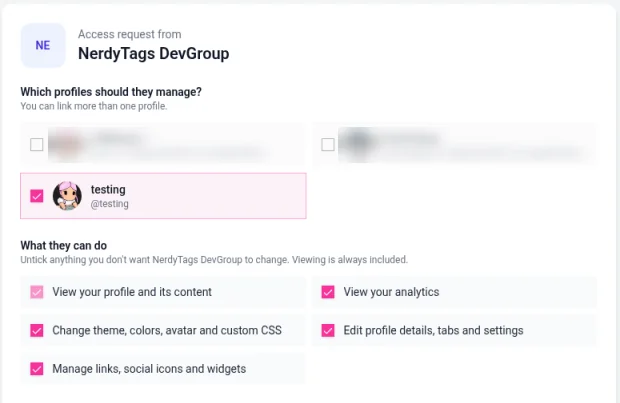
Only the permissions the organization asked for are listed, and you can turn any of them off except viewing.
Each profile can be linked to only one organization at a time. A profile that's already linked shows Already linked to an organization and can't be picked. To link it to a different organization, remove the current one first (see below).
If the code doesn't work, check that you typed it correctly, or ask the organization for a new code. Codes can expire or reach their limit of uses.
What the organization can do
The organization's team can make the changes you allowed, using the same editor you use. Here's what each permission means:
Permission | What it lets them do |
|---|---|
View your profile and its content | See your profile in their workspace. This is always included. |
View your analytics | See your views, clicks and other stats. |
Change theme, colors, avatar and custom CSS | Change how your profile looks. |
Edit profile details, tabs and settings | Update your name, bio, profile tabs and settings. |
Manage links, social icons and widgets | Add, edit and remove links, social icons and widgets. |
Manage your custom domain | Set up or change your profile's custom domain. |
Manage subscribers, integrations and Shopify | Work with your email subscribers and connected apps. |
While your profile is linked to an organization, it gets every feature of the Business plan at no extra cost. If you remove the organization's access, your profile goes back to your own plan. See Free, Pro and Business plans compared.
See who has access
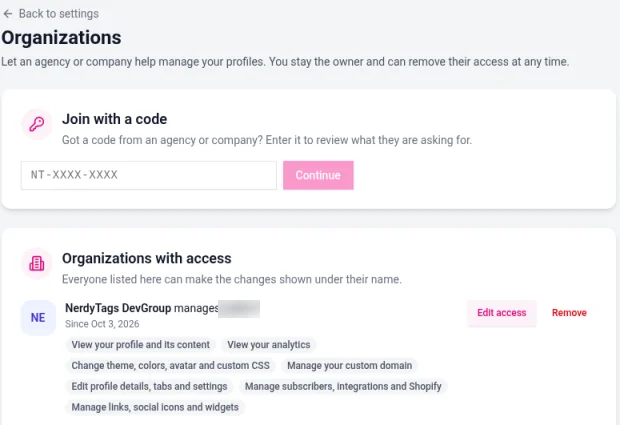
Organizations with access lists every organization that can manage your profiles. Each entry shows which profile they manage, the date access started and the permissions they have.
Change what they can do
On Organizations, find the organization and profile and click Edit access.
Tick or untick permissions. Viewing your profile stays on.
Click Save.
Remove an organization
On Organizations, find the organization and profile and click Remove.
Click Remove access to confirm.
The organization loses access to that profile immediately. Your profile and its content stay exactly as they are. Removing access from one profile doesn't affect any other profiles you've linked.
The organization can also stop managing your profile from their side. Either way, you keep your profile.
Organizations and profile admins
Giving an organization access is different from adding a profile admin. An admin is one person you invite to help with a profile. An organization is a whole team working in NerdyTags Business, and you choose exactly which permissions they get. See Managing multiple profiles and profile admins.
Run a team yourself? See Getting started with NerdyTags Business.