
NerdyTags Business is a shared workspace for teams that look after more than one NerdyTags profile. Agencies, real estate offices, sales teams, franchises, event teams and creator managers use it to:
Create on-brand profiles for everyone on the team.
Manage clients' existing profiles, with their permission.
Answer messages sent to company profiles together, from one inbox.
Collect every lead in one list and compare results across profiles.
Organize the team into groups, such as regions or offices, with roles that fit each person.
Add your own branding, a portal domain, single sign-on and a full audit log.
NerdyTags Business lives at business.nerdyt.ag and uses your normal NerdyTags account. One account works for both business and personal profiles, and your team uses the same editor and live preview as personal NerdyTags accounts.
NerdyTags Business and the Business plan
NerdyTags Business, the team workspace, is separate from the Business plan you can choose for a personal account. Every profile in your workspace, whether your company owns it or manages it for a client, gets every feature of the Business plan at no extra cost. That includes custom domains, advanced themes, contact forms, live chat and analytics. If a profile leaves the workspace, it goes back to its own plan. See Free, Pro and Business plans compared for what the Business plan includes.
Pricing
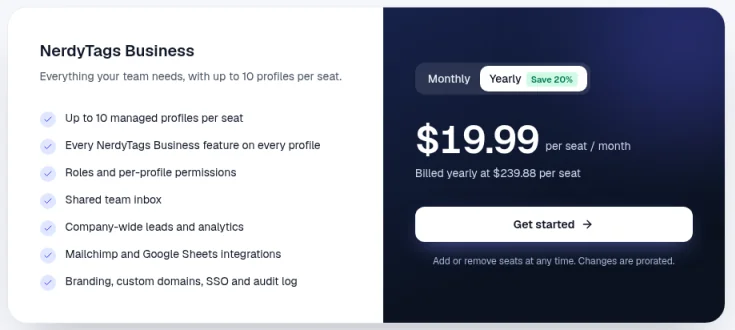
NerdyTags Business is one plan, priced per seat:
Billing | Price |
|---|---|
Monthly | $24.99 per seat per month |
Yearly (save 20%) | $19.99 per seat per month, billed yearly at $239.88 per seat |
Each seat adds one team member and up to 10 managed profiles. Added seats are charged right away, prorated, and removed seats stay until the end of your billing period. If you cancel, everything keeps working until the end of the billing period, and then your organization becomes read-only until you resubscribe. Nothing is deleted. See Business billing and seats.
Sign up
Go to business.nerdyt.ag and click Get started, or go straight to business.nerdyt.ag/register.
Enter your Work email.
If you like, claim a Profile username for a NerdyTags profile now. It's optional: you can skip it and create profiles later.
Choose a Password of at least 8 characters and type it again in Confirm password.
Agree to the Terms of Service and Privacy Policy, then click Create account.
Verify your email address with the link we send you.
Create your organization, as described below.
Already have a NerdyTags account? You don't need a second one. Sign in to the Business portal with your usual email and password, then create your organization.
Create your organization
Enter your Organization name and choose a Portal URL. The portal URL is the part of your portal's address after business.nerdyt.ag/.
Pick any of your existing NerdyTags profiles you'd like to bring in. They become company profiles your team can manage, and they count toward your profile limit.
Choose how many seats you need.
Pay to activate your seats.
Your email address needs to be verified before you can create an organization. If you signed up for NerdyTags with Google, Discord or Facebook, your email already counts as verified. Otherwise, use the verification link we emailed you. See Verifying and changing your email address.
Sign in
Go to business.nerdyt.ag/login, or click Sign in on the NerdyTags Business home page.
Enter the email and password for your NerdyTags account.
Tick Keep me signed in if you're on your own device.
Click Sign in.
If you've turned on two-factor authentication, enter the code from your authenticator app when you're asked.
If your company has set up single sign-on, use the single sign-on option on the sign-in page instead. See Setting up single sign-on.
Your NerdyTags Business password is your NerdyTags account password. If you've forgotten it, see Changing your password and checking login activity.
Your organization can also share its own branded sign-in link, and it may run the portal on its own domain. Both work with the same NerdyTags account. See Branding your portal and adding a portal domain.
If you belong to more than one organization, switch between them with the organization name at the top of the sidebar.
The Overview page
Overview is the first page you see after signing in. It's a snapshot of your profiles, seats and recent activity.
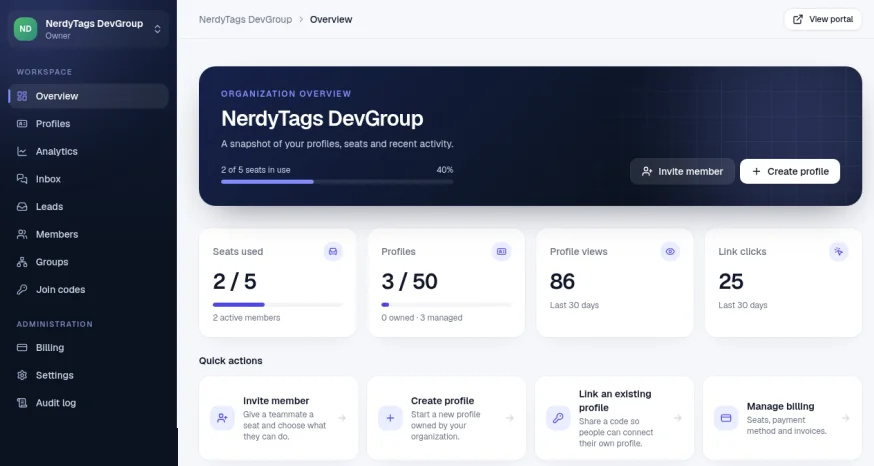
The header shows how many seats are in use, with Invite member and Create profile buttons. View portal at the top of the page opens your portal.
Seats used shows used and total seats, and how many active members you have.
Profiles shows used and total profiles, split into owned and managed.
Profile views and Link clicks cover the last 30 days, across all your profiles.
Quick actions take you to Invite member, Create profile, Link an existing profile and Manage billing.
Top profiles and Recent activity list your busiest profiles and the latest changes. Click View all to see more.
The sidebar has two groups. Workspace holds Overview, Profiles, Analytics, Inbox, Leads, Members, Groups and Join codes. Administration holds Billing, Settings and Audit log. There's also a Dark mode switch at the bottom.
How seats and profiles are counted
Everyone in your organization uses one seat, including you.
Pending invites hold a seat too, until they're accepted, revoked or expire.
Each seat includes up to 10 profiles. For example, 3 seats give you room for 30 profiles, and 5 seats give you room for 50.
Both kinds of profile count toward the limit: profiles your organization owns and client profiles you manage. The Profiles card on Overview shows how many of each you have.
If you need more seats or profiles, see Business billing and seats.
Organization details
Go to Settings > General to change your organization's details:
Organization name
Portal URL, the part of the address after business.nerdyt.ag/. Changing it breaks old links to the portal, so update any links you've shared.
Billing email, where invoices and receipts are sent.
Click Save changes when you're done.
The Danger zone at the bottom of the page has Delete organization. Deleting an organization cancels the subscription immediately, with no refund for the rest of the billing period. It also removes all members and stops managing client profiles. You need to delete or transfer the organization's own profiles first. See Creating and managing company profiles.