
NerdyTags Business brings the results from all your profiles together. Analytics shows how they're performing, Leads collects everyone who signs up or gets in touch, and Inbox lets your team answer messages sent to company profiles.
Analytics
Analytics shows views, clicks and traffic sources across your organization's profiles.
Choose what to show
Use the profile menu to see All profiles or pick one profile.
Choose a period: 7D, 30D or 90D for the last 7, 30 or 90 days.
The numbers
Card | What it shows |
|---|---|
Views | How many times your profiles were viewed. |
Clicks | How many times links on your profiles were clicked. |
Click rate | Clicks as a percentage of views. |
QR & NFC scans | Visits from QR codes and NFC tags, with QR and NFC counted separately. |
Each card compares the period with the one before it, so you can see whether things are going up or down.
The sections
Traffic: daily views and clicks for the period.
Profiles: views, clicks and click rate for each profile. Click a profile to filter the whole page to it.
Top sources: where visitors came from, for example Direct.
Top countries: where visitors are located.
Top links: the most clicked links, with the profile each one belongs to.
For help reading the numbers, see Understanding your analytics.
Leads
Leads collects email subscribers and contact form submissions from all your profiles in one list.
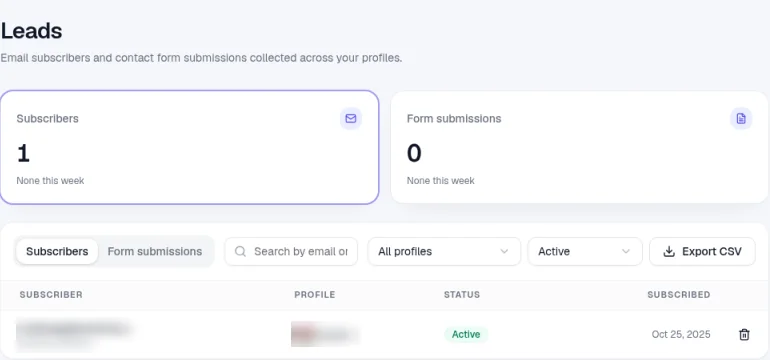
The Subscribers and Form submissions cards show your totals and how many are new this week.
Switch between the Subscribers and Form submissions tabs.
Search by email or name, filter by profile, and filter subscribers by status, for example Active.
Click Export CSV to download the list.
To use Leads, team members need the Manage email subscribers, integrations and Shopify permission. Owners and Admins have it. Group managers see leads for their group's profiles. Without it, Leads is hidden from the sidebar. See Roles and permissions in NerdyTags Business.
Each subscriber shows the profile they signed up on, their status and the date they subscribed. To delete a subscriber, click the trash icon on their row.
New leads come from the signup form and contact forms on your profiles:
To collect emails, turn on the Signup form in the profile editor's Subscribers section. See Creating and managing company profiles. For how the signup form works for visitors, see Collecting email subscribers with the signup widget.
To collect form submissions, add a contact form to a link. See Link options: styles, galleries, scheduling, passcodes and contact forms.
To send new subscribers and form submissions to Mailchimp or Google Sheets automatically, see Company tracking and integrations. To send them to Zapier, Make or another app, see Sending leads to Zapier, Make and other apps with webhooks. HighLevel and Asana are coming soon. See Connecting HighLevel to NerdyTags Business and Connecting Asana to NerdyTags Business.
Inbox
Inbox shows messages sent to your organization-owned profiles. Anyone with access can reply as the profile, so nobody has to wait for the one person who looks after it.
Only organization-owned profiles are included. Client profiles linked with a join code never appear in the Inbox. Their messages stay private to the profile's owner.
Who can use it: team members need the Read and reply to messages sent to company-owned profiles permission and access to the profile. Owners and Admins have it by default. Editors and Viewers don't. Group managers can see their group's inbox. Without the permission, Inbox is hidden from the sidebar. See Roles and permissions in NerdyTags Business.
AI suggestions: if your organization has turned on the AI assistant, people who can reply may see suggested replies. See Using the AI assistant in NerdyTags Business.
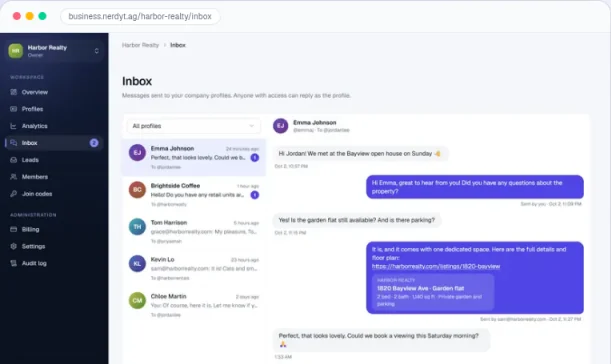
Go to Inbox. Filter by profile, or see everything at once.
Choose a conversation on the left to read it.
Write your reply. It's sent as the profile.
Your team can see which teammate sent each reply, so it's easy to pick up where someone left off. Replies can include emoji, GIFs and link previews, just like personal chat.
Until someone messages one of your company profiles, the inbox shows No conversations yet. For more about messages on NerdyTags, see Discover, followers and messages.