
A role is a set of permissions. In NerdyTags Business, everyone has an organization role, and people in a group also have a group role for that group's profiles. You can use the five built-in roles or make your own.
To see every role and its permissions, go to Members and open the Roles tab. Each role card shows how many people and group memberships use it. Expand a role's permission summary to see exactly what it includes.
Organization permissions and profile permissions
Permissions come in two kinds:
Organization permissions are organization-wide actions, like billing, settings and inviting people. They only apply when the role is someone's organization role, not inside a group.
Profile permissions set what people can do on the profiles they can access, either directly or through a group.
So if someone's group role is Admin, they get the Admin profile permissions on that group's profiles, but not the Admin organization permissions. For more on how direct access and groups work together, see Organizing your team with groups.
Built-in roles
Role | Description |
|---|---|
Owner | Full access, including billing and deleting the organization. Every organization has one Owner. |
Admin | Manage members, profiles and settings. |
Editor | Create and edit profiles. |
Viewer | Read-only access to profiles and analytics. |
Member | No organization-wide access. Gets access only through the groups they belong to. |
Here's exactly what each built-in role includes.
Organization permissions
Permission | Owner | Admin | Editor | Viewer | Member |
|---|---|---|---|---|---|
Edit organization details | Yes | Yes | No | No | No |
Edit portal branding | Yes | Yes | No | No | No |
Manage custom portal domains | Yes | Yes | No | No | No |
Manage seats, payment methods and invoices | Yes | No | No | No | No |
Invite team members | Yes | Yes | No | No | No |
Change roles, profile access and remove members | Yes | Yes | No | No | No |
Create profiles owned by the organization | Yes | Yes | Yes | No | No |
Create join codes so existing NerdyTags users can link their profiles | Yes | Yes | No | No | No |
Delete, transfer or unlink profiles | Yes | Yes | No | No | No |
View the audit log | Yes | Yes | No | No | No |
Profile permissions
Permission | Owner | Admin | Editor | Viewer | Member |
|---|---|---|---|---|---|
View profiles and their content | Yes | Yes | Yes | Yes | No |
Edit profile details, tabs and settings | Yes | Yes | Yes | No | No |
Change theme, colors, avatar and custom CSS | Yes | Yes | Yes | No | No |
Manage links, social icons and widgets | Yes | Yes | Yes | No | No |
Manage the profile custom domain | Yes | Yes | No | No | No |
Manage email subscribers, integrations and Shopify | Yes | Yes | No | No | No |
View profile analytics | Yes | Yes | Yes | Yes | No |
Read and reply to messages sent to company-owned profiles | Yes | Yes | No | No | No |
Of the permissions listed, the only one Admins don't have is Manage seats, payment methods and invoices.
Webhooks on Settings > Integrations need Edit organization details. Connecting Mailchimp, Google Sheets, HighLevel and Asana uses Manage email subscribers, integrations and Shopify. See Sending leads to Zapier, Make and other apps with webhooks.
On client profiles, your team can only do what the client agreed to when they linked their profile, whatever their role. See Managing client profiles with join codes.
The same permissions apply when a team member uses a company profile in the regular NerdyTags app. Choosing which company profiles someone can use in the app needs Change roles, profile access and remove members. Duplicating a profile is available to Owners, Admins and Editors. See Giving team members a company profile in the NerdyTags app and Creating and managing company profiles.
Organization roles and group roles together
People get everything their organization role, direct profile access and groups allow.
Which role takes the lead: if someone's organization role is Admin, Editor or Viewer and their direct profile access is All profiles, their organization role takes precedence over their group roles. To let their group roles take the lead, set their organization role to Member, or choose Specific profiles and don't select any.
For example, someone who's an Editor with no direct profile access, a Viewer in Group A and an Editor in Group B can only view Group A's profiles, and can edit Group B's. As an Editor, they can still create profiles. Profiles someone creates belong to the organization, and creating one gives them direct access to that profile.
What people see with each role
NerdyTags Business only shows people what their permissions allow. Your role is shown under the organization name at the top of the sidebar.
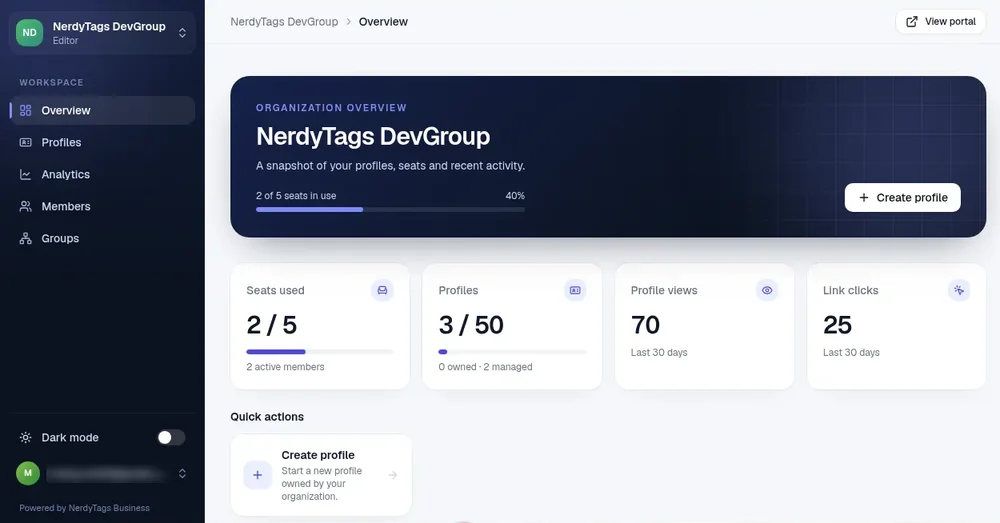
The sidebar hides pages someone doesn't have permission for. For example, an Editor with no direct profile access sees Overview, Profiles, Analytics, Members and Groups. Inbox, Leads, Join codes, Billing, Settings and Audit log are hidden.
Overview only shows the buttons and quick actions they can use, such as Create profile for an Editor.
Profiles lists only the profiles they can access. If they can view a profile but not change it, its actions show View instead of Edit, and the editor opens marked View only with the message "You can view this section but don't have permission to change it."
Members shows the team list and everyone's group roles, but no options to change members unless they have permission.
Groups shows the groups they're in, with their group role in each one.
If someone opens a page they don't have access to, they'll see a message instead:
Page | What they see | Permission they need |
|---|---|---|
Inbox | You can't view the inbox | Read and reply to messages sent to company-owned profiles |
Leads | You don't have access to leads | Manage email subscribers, integrations and Shopify |
Audit log | You don't have access to the audit log. | View the audit log |
Group managers get Inbox and Leads for their group's profiles. See Organizing your team with groups.
Make a custom role
If none of the built-in roles fit, make your own.
Go to Members and open the Roles tab.
Click New role.
Enter a Name, for example "Regional editor", and if you like, a Description of what the role is for.
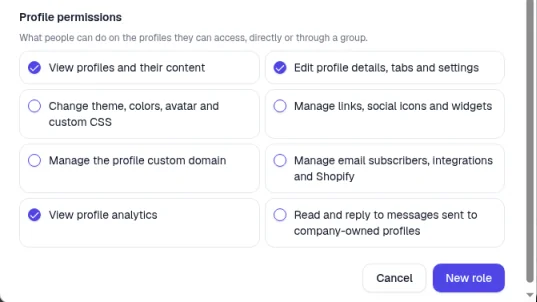
Tick the permissions you want under Organization permissions and Profile permissions.
Click New role at the bottom of the window.
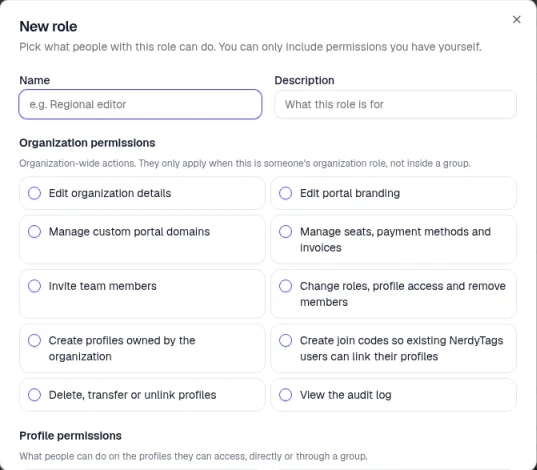
You can only include permissions you have yourself. The new role appears in the list marked Custom. The Roles tab explains that a role can be used as someone's organization role, or as their role inside a group.
Change, copy or delete a role
Duplicate appears on every role except Owner.
Edit appears on custom roles.
Delete is the bin icon on a custom role. The confirmation explains that you can only delete a role that nobody uses, so move people to another role first. Each role card shows how many people and group memberships it has.