
Groups let you organize your team into smaller teams, such as regions, offices or departments, and give each team access to its own profiles. They're optional. Small teams can skip them and use roles and direct profile access instead.
Find them under Groups in the sidebar of NerdyTags Business.
How access works
There are three ways to give someone access, and you can combine them however you like. The How access works panel at the top of Groups sums them up. Click Hide to collapse it.
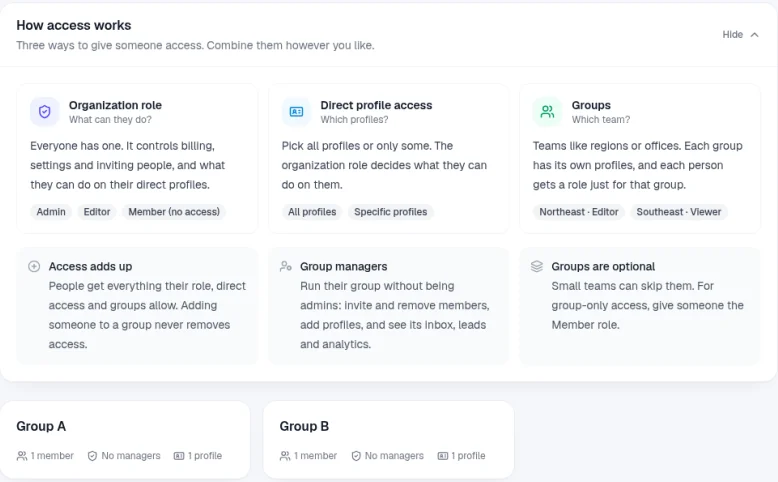
Organization role: what they can do. Everyone has one. It controls billing, settings and inviting people, and what they can do on their direct profiles.
Direct profile access: which profiles. Pick all profiles or only some. The organization role decides what they can do on them.
Groups: which team. Each group has its own profiles, and each person gets a role just for that group, for example Northeast · Editor or Southeast · Viewer.
Access adds up
People get everything their role, direct access and groups allow. Adding someone to a group never removes access they already have.
Which role takes the lead: if someone's organization role is Admin, Editor or Viewer and their direct profile access is All profiles, their organization role takes precedence over their group roles. To let their group roles take the lead, set their organization role to Member, or choose Specific profiles and don't select any.
For example, someone who's an Editor with no direct profile access, a Viewer in Group A and an Editor in Group B can only view Group A's profiles, and can edit Group B's.
Profiles someone creates belong to the organization, and creating one gives them direct access to that profile.
The Member role has no organization-wide access and no profile permissions of its own, so a Member only gets what their groups give them.
Group roles and group managers
Each person in a group has a group role, such as Admin, Editor, Viewer or Member. Their group role sets what they can do on that group's profiles. Only the role's profile permissions count inside a group. Organization permissions, like billing or inviting people, only come from someone's organization role. See Roles and permissions in NerdyTags Business.
You can also make someone a Manager of a group. Group managers run their group without being admins. The group's page shows them as Manager, and its card on Groups says You manage. A group manager:
Has full access to the group's profiles.
Can click Add member on the group's Members tab to add an existing team member or invite someone new by email.
Can click Create profile or Add profiles on the group's Profiles tab. They can only add profiles they already have full access to.
Gets Inbox and Leads for the group's profiles, along with Analytics.
Group managers don't get the Edit and Delete group buttons, so they can't rename or delete the group.
Create a group
Go to Groups and click New group.
Enter a Name, for example "Northeast region".
If you like, add a Description to help people know who belongs there.
Click Create group.
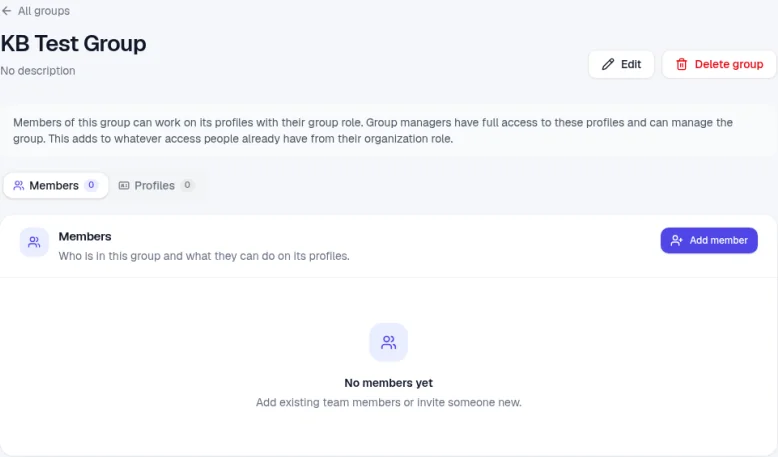
The group's page opens. It has two tabs, Members and Profiles, each with a count.
Add people to a group
Open the group, go to the Members tab and click Add member.
Choose Existing member to add someone who's already on your team, or Invite by email to invite someone new.
Choose their Group role: Admin, Editor, Viewer or Member. It starts as Editor.
To make them a manager, turn on Make group manager. Managers get full access to the group's profiles, and can manage its members and profiles.
Click Add to group.
If everyone on your team is already in the group, you'll see Everyone's already in this group. Use Invite by email to add someone new.
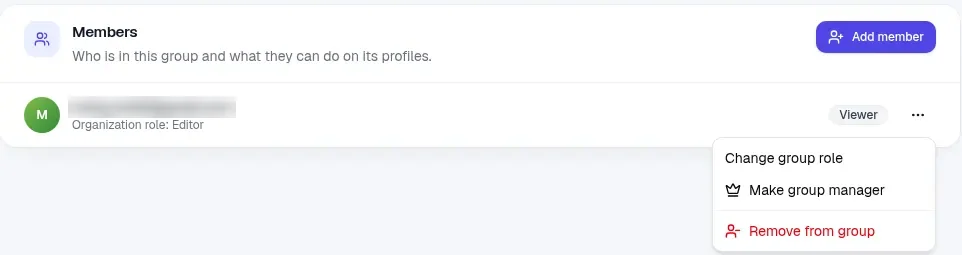
Each person in the group shows their group role, with their organization role underneath. To change someone, click ... next to them:
Change group role picks a different role for this group.
Make group manager makes them a manager of the group.
Remove from group takes them out of the group. They stay in your organization.
Add profiles to a group
Open the group and go to the Profiles tab. It lists the profiles the group works on.
Click Add profiles.
Tick the profiles you want. Type in Filter profiles to find one quickly. The button shows how many you've picked, for example Add 1 profile.
Click the button to add them. You'll see Profile added.
Group members get their group role on these profiles. You can add both profiles your organization owns and client profiles you manage. Each profile shows a label, such as Company for a profile your organization owns. The Profiles tab also has a Create profile button.
To take a profile out of the group, click the X next to it. You'll see Profile removed from the group. The profile stays in your organization.
On Groups, each group card shows how many members, managers and profiles it has. Click a card to open the group, and use All groups to go back.
Add someone to a group when you invite them
When you invite a team member, the Groups section of the invite form lets you add them to groups straight away. They join when they accept the invite.
Tick each group they should join.
Choose their group role for that group. It starts as Editor.
Tick Manager if they should run the group.
To give someone access only through their groups, click Limit to group access. This sets their organization role to Member and removes the direct profile access choices.
If you pick groups for someone with a role like Editor or Viewer, the form reminds you that their organization role and direct profile access apply on top of their groups, so group roles won't limit them. See Inviting team members and choosing roles.
On Members, each person's groups show next to their name with their group role, for example "Group A · Viewer".
Rename or delete a group
To rename a group or change its description, open the group, click Edit, make your changes and click Save.
To delete a group:
Open the group and click Delete group.
Check the message and click Delete group to confirm.
Members lose the access the group gave them. The profiles and the people stay in your organization.