
The audit log is a record of every change made in your organization, so you can always see who changed what, and when. Open it from Audit log in the sidebar of NerdyTags Business. You need the View the audit log permission, which Owners and Admins have. See Roles and permissions in NerdyTags Business.
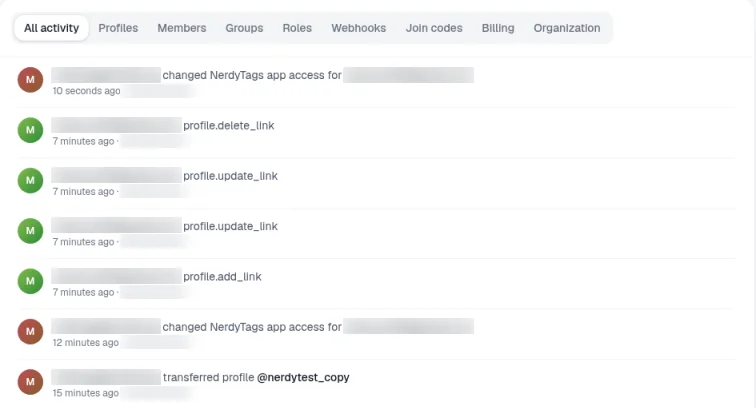
What each entry shows
The newest changes are at the top. Each entry shows:
Who made the change, by their email address.
What they did, for example "created profile", "linked profile", "created join code", "added profiles to a group", "created role", "updated the branding", "duplicated a profile as", "transferred profile" or "changed NerdyTags app access for".
Which item it affected, like a profile's @username, a group, a role, a join code's label or a portal domain.
When it happened, for example "2 minutes ago".
The IP address the change came from.
Filter the log
Click a filter at the top to see one type of change:
Filter | Examples of what's recorded |
|---|---|
All activity | Every change, newest first. |
Profiles | Profiles created, deleted or linked to your organization. |
Members | Changes to your team. |
Groups | Changes to groups, such as profiles added to or removed from a group. |
Roles | Custom roles created or deleted. |
Webhooks | Changes to your webhooks. |
Join codes | Join codes created. |
Billing | Changes to your seats and subscription. |
Organization | The organization being created, and other organization changes. |
Changes like adding a portal domain or updating the branding show under All activity too. If a filter has nothing in it yet, you'll see No activity yet.
Changes team members make in the NerdyTags app on a company profile show in the log too, under their email, as profile changes. These currently appear with technical names, for example "profile.add_link", "profile.update_link" and "profile.delete_link". See Giving team members a company profile in the NerdyTags app.
When there's more than one page of changes, use Previous and Next at the bottom to move between pages, for example Page 1 of 2.
When to use it
Check who created, changed or deleted a profile.
See who changed a group or a custom role.
See who changed a webhook.
Confirm that a client profile was linked to your organization.
Review changes to seats and billing.
Spot activity from an IP address you don't recognize. If something looks wrong, email [email protected].