
Your team doesn't have to use the NerdyTags Business portal for everything. You can give a team member one or more company profiles in the regular NerdyTags app and mobile app. The profiles then show up next to their own, and they can switch to them and edit them like any other profile.
Your organization's rules still apply in the app. The member can only do what their access in NerdyTags Business allows, and their changes are logged for your organization.
Give a member a company profile
To do this, you need the Change roles, profile access and remove members permission. Owners and Admins have it. Editors, Viewers and Members don't. See Roles and permissions in NerdyTags Business.
In NerdyTags Business, go to Members.
Click ... next to the member and choose NerdyTags app access.
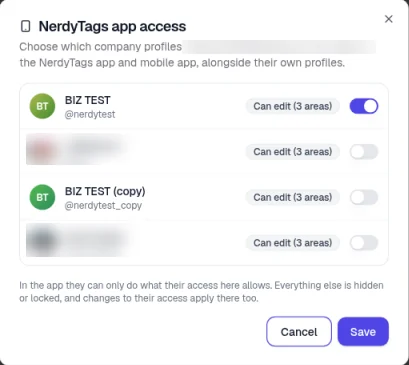
The window says "Choose which company profiles [member] can open in the NerdyTags app and mobile app, alongside their own profiles." Turn on the switch next to each profile you want them to have.
Click Save. You'll see App access updated.
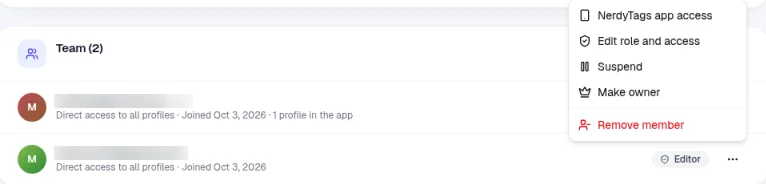
The list includes your organization-owned profiles and the client profiles you manage. On Members, the member's row now shows how many company profiles they have in the app, for example 1 profile in the app.
What they can do in the app
Each profile in the window has a label like Can edit (3 areas). It shows how much the member can change on that profile, based on their role and profile access. For example, the built-in Editor role has three profile editing permissions:
Edit profile details, tabs and settings
Change theme, colors, avatar and custom CSS
Manage links, social icons and widgets
As the window explains: "In the app they can only do what their access here allows. Everything else is hidden or locked, and changes to their access apply there too." To change what they can do, change their role or profile access. See Roles and permissions in NerdyTags Business and Inviting team members and choosing roles.
What the member sees
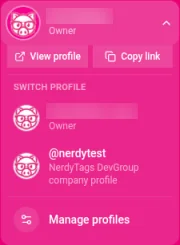
In their NerdyTags dashboard, the company profile appears in the profile switcher under SWITCH PROFILE, with its @username and the line "[Organization] company profile", for example "NerdyTags DevGroup company profile". It isn't marked Owner, because the profile belongs to your organization.
When they switch to it, a banner at the top of the dashboard says "You're working on [Organization]'s profile" and "You only see the tools your company access allows, and your changes are logged for the company."
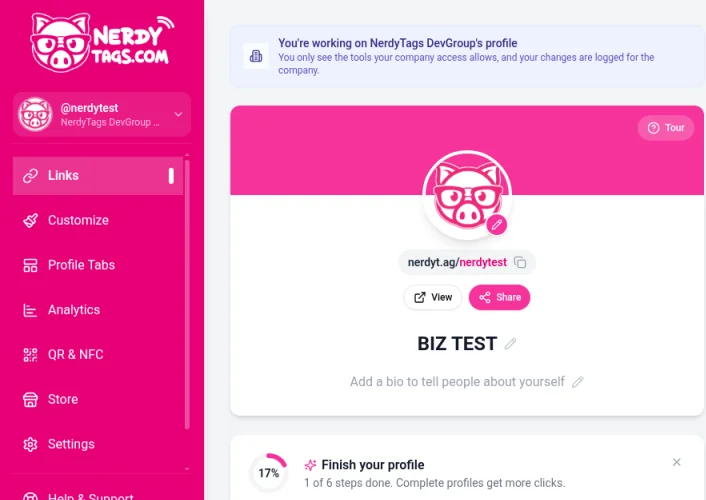
The sidebar only shows the sections their access allows. In our test with the Editor role, the member saw Links, Customize, Profile Tabs, Analytics, QR & NFC, Store and Settings. Subscribers, Connections, Discover, Billing and Messages weren't shown.
Links and Customize work as they do on any profile. Company profiles get every Business plan feature, so the Premium options on Customize are there too.
Analytics shows the profile's impressions, clicks, click rate, QR scans, NFC taps and shares.
Settings: they get the profile's settings, including Username, Discover and Integrations (tracking pixels, connected apps and custom domain). Changing the username changes the profile's address, so old links, printed QR codes and NFC tags stop working. It's a good idea to agree on any username change with your team first.
Store is available too.
Messages belong to the member's personal NerdyTags. On a company profile they see "Only for your own profiles" and "This is part of your personal NerdyTags. Switch to one of your own profiles to use it." Messages sent to company profiles are answered in the Inbox in NerdyTags Business. See Analytics, leads and inbox in NerdyTags Business.
Changes show in the audit log
Changes the member makes in the app are recorded in your organization's audit log under their email, as profile changes such as adding, updating or deleting a link. Giving or removing app access is recorded too, as "changed NerdyTags app access for" and the member's email. See Using the audit log.
Remove a company profile from the app
Go to Members, click ... next to the member and choose NerdyTags app access.
Turn off the switch next to the profile.
Click Save.
You'll see App access updated, and their row on Members no longer counts the profile. The profile itself isn't changed, and they keep the access they have in NerdyTags Business.
This is different from transferring a profile, which makes someone its owner. See Creating and managing company profiles.