
The AI assistant helps your team write profile text and reply to messages. It only suggests. People on your team review each suggestion and decide whether to save or send it.
The AI assistant is available on NerdyTags Business organizations with 4 or more seats. To add seats, see Business billing and seats.
Turn on the AI assistant
In NerdyTags Business, go to Settings and open the AI assistant tab.
Turn on Turn on the AI assistant.
Choose a Tone and, if you like, add a House style, as described below.
Click Save.
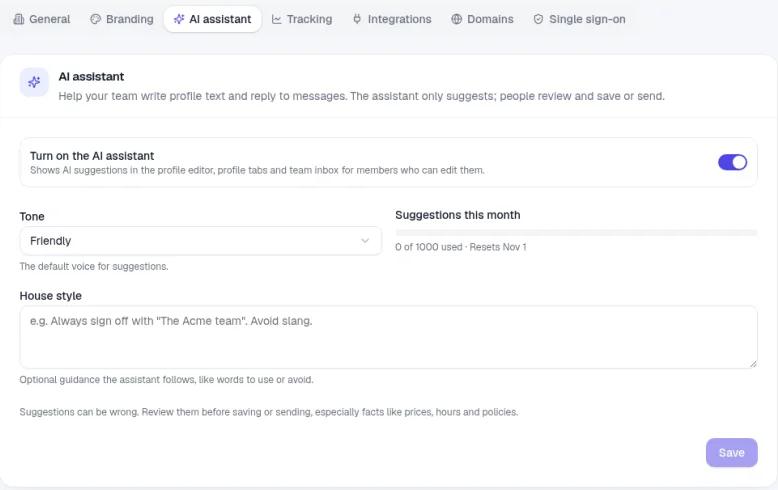
To stop suggestions, turn off Turn on the AI assistant.
Tone and house style
Tone is the default voice for suggestions. Choose Friendly, Professional, Casual or Formal.
House style is optional guidance the assistant follows, like words to use or avoid. For example: Always sign off with "The Acme team". Avoid slang.
Suggestions this month
The Suggestions this month meter shows how many of your organization's 1000 monthly suggestions have been used, for example 0 of 1000 used, and the date the count resets. It resets every month.
Where your team sees suggestions
When the assistant is on, suggestions appear in three places, for team members who can edit them:
The profile editor, for example the bio.
Profile tabs, for example the About tab.
The team inbox, for replies to messages sent to company-owned profiles.
What each person can do with a suggestion depends on what they're allowed to edit. See Roles and permissions in NerdyTags Business.
Write a bio with AI
In NerdyTags Business, open the profile and go to Content.
Click the bio under the profile name. If it's empty, it says Add a short bio.
Click Write with AI. A suggested bio appears in the box.
To rework it, click Improve, Shorten, More professional or Friendlier. You can also edit the text yourself. Bios can be up to 140 characters, and the counter shows how many you've used.
Press Enter to save it, or Esc to cancel. Use Shift+Enter for a new line.
The editor shows Saving… and then Saved, and the live preview updates.
Write tab text with AI
Profile tabs can use suggestions too. For example, on the About tab:
Open the profile and go to Tabs, then choose About.
Under Extended bio, click Write with AI. A suggested extended bio appears, which can include headings and bold text.
Use Improve, Shorten, More professional or Friendlier to rework it, or edit it yourself. The extended bio can be up to 5000 characters.
Check the text and the live preview before you save your changes.
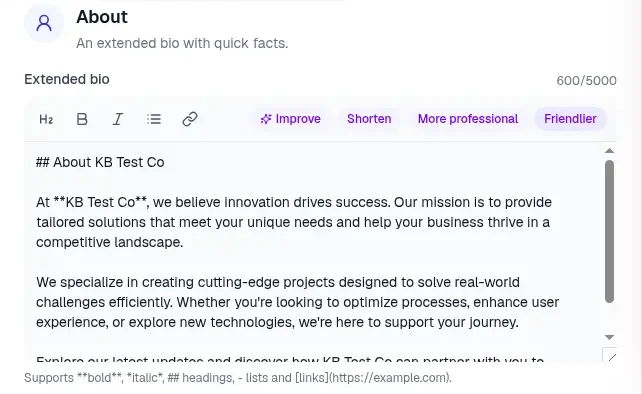
The extended bio supports bold, italic, headings, lists and links.
Suggestions in the team inbox
The AI assistant settings also list the team inbox as a place where suggestions appear. The inbox only lists conversations once someone has messaged one of your company profiles. Until then it shows No conversations yet. See Analytics, leads and inbox in NerdyTags Business.
The usage meter and the reminder to check suggestions are on the AI assistant settings tab, not in the editor.
Always check suggestions
Suggestions can be wrong. Review them before you save or send them, especially facts like prices, hours and policies. Nothing is saved or sent until someone on your team does it.