
NerdyTags Business is billed per seat. Each seat adds one team member and up to 10 managed profiles. Your seats, payment method and invoices are all on the Billing page in NerdyTags Business.
Pricing
Billing | Price |
|---|---|
Monthly | $24.99 per seat per month |
Yearly (save 20%) | $19.99 per seat per month, billed yearly at $239.88 per seat |
The Billing page
Open Billing from the sidebar. Manage seats on the Members page opens the same page.
Managing seats, payment methods and invoices needs the Manage seats, payment methods and invoices permission. Of the built-in roles, only the Owner has it. See Roles and permissions in NerdyTags Business.
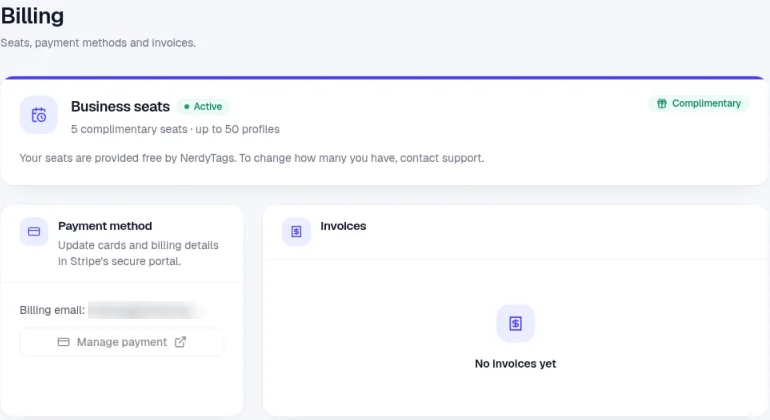
Business seats shows your subscription status, how many seats you have and how many profiles they include.
Payment method shows your billing email. Click Manage payment to open Stripe's secure portal, where you can update your cards and billing details.
Invoices lists your invoices. Until you've been billed, it says No invoices yet.
Invoices and receipts go to the billing email. To change it, go to Settings > General.
Complimentary seats
If your seats are provided free by NerdyTags, the Business seats card is marked Complimentary. To change how many complimentary seats you have, contact support at [email protected].
Complimentary seats make your organization active right away, so everything works, including integrations and webhooks. When the complimentary period ends, your organization becomes read-only and integrations and webhooks stop sending.
Seats and profiles
Everyone in your organization uses one seat, and pending invites hold a seat too.
When you remove a member, their seat is freed straight away.
Each seat includes up to 10 profiles, counting both organization-owned and client profiles.
The Members page shows how many seats are in use. See Inviting team members and choosing roles.
Change your seats
Change your seat count on the Billing page. Manage seats on the Members page takes you there. If your seats are complimentary, contact support at [email protected] instead.
Adding seats
New seats are available right away. You're charged straight away for the rest of your current billing period, prorated, and the Billing page can show you the amount due today before you confirm.
Removing seats
Removing seats takes effect at the end of your current billing period. Until your plan renews, you keep your current number of seats, and from the renewal date you're billed for the new, lower number. There's no refund or credit for removed seats.
Changed your mind? You can cancel a pending reduction from the Billing page any time before your plan renews.
How low you can go
You always need enough seats for:
Everyone using a seat: your active members plus any pending invites.
Your profiles: each seat covers up to 10 profiles, so 25 profiles need at least 3 seats.
To go lower than that, free up seats or profiles first. For example, revoke invites you no longer need, or stop managing profiles you don't look after anymore.
Cancelling
Go to Billing and scroll to the Cancel subscription panel at the bottom of the page, below Invoices.
Click Cancel subscription.
If you like, tell us why in the optional reason box, then confirm.
Only the Owner sees this option, and only on a paid subscription. It doesn't appear for complimentary seats. Once your subscription is set to cancel, the panel is replaced by a notice that it will cancel at the end of the current billing period.
After you cancel, everything keeps working as normal until the end of your current billing period. All purchases are final, and we're not able to offer refunds.
After the billing period ends
Your organization becomes read-only. Nothing is deleted.
Your team can still sign in and see everything, but can't make changes.
A few things still work, so you can wrap up or come back: billing, so the owner can resubscribe, deleting the organization, removing members, transferring ownership, and unlinking or deleting profiles.
On profiles, your team keeps view and analytics access only.
Profiles lose the Business features they had through your organization and go back to their owner's own plan, or to Free.
Public profile pages stay live on that plan, so visitors can still reach them.
Resubscribing
Resubscribe from the Billing page at any time. Everything comes back as it was, including your team's access and every profile's Business features.
Deleting the organization instead
Deleting your organization in Settings > General cancels the subscription immediately. There's no refund or credit for the rest of the billing period. See Getting started with NerdyTags Business.
Billing for personal accounts
The Billing page in NerdyTags Business covers your organization's seats only. Plans for a personal NerdyTags account are billed separately. See Billing and subscription management.