
Everyone who signs up through your profile is listed on the Subscribers page. From there you can search the list, remove people and download it as a CSV file.
See your subscribers
In your dashboard, click Subscribers in the sidebar.
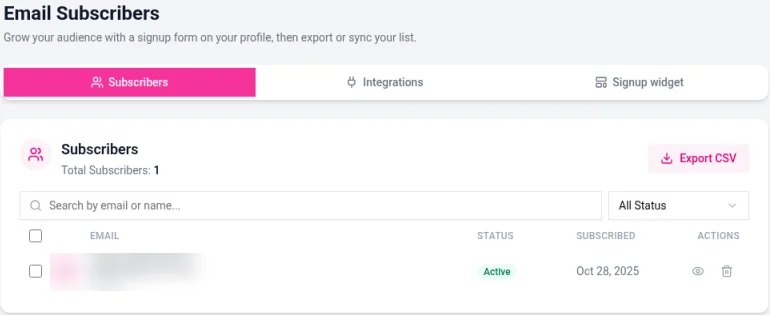
The Subscribers tab opens with your list and your Total Subscribers count.
Search and filter
Type in the search box to find a subscriber by email or name.
Use the All Status menu to show only Active, Unsubscribed or Bounced subscribers. Bounced means emails to that address couldn't be delivered.
View or remove a subscriber
Each subscriber has buttons to view their details or delete them. Delete someone if they ask to be removed from your list. If you've connected an email tool like Mailchimp, remove them there too.
Export your list
On the Subscribers tab, click Export CSV.
Your browser downloads a CSV file you can open in Excel, Google Sheets or Numbers, or import into another email tool.
Export regularly if your list matters to you, so you always have your own copy.
Send subscribers to another tool automatically
Instead of exporting by hand, you can connect Mailchimp or Google Sheets so new subscribers are added for you. Email integrations are on Pro (1 integration) and Business (5 integrations). See Connecting Mailchimp, Google Sheets, Shopify and other integrations.
Respecting your subscribers
Only email people who signed up, and include a way to unsubscribe in every email you send. Your email tool usually handles this for you.