
Polls and giveaways let your audience take part right on your profile. Ask your fans which game to stream next, or give away a Steam key to celebrate a milestone. You can use them on every plan, including Free.
Each poll or giveaway lives on one of your links. Once you publish it, tapping that link opens the poll or giveaway instead of going to the link's web address.
Create a poll
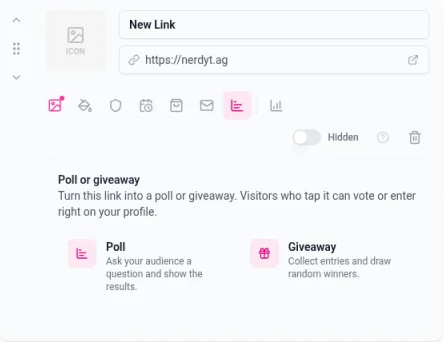
Go to Links in your dashboard and add a link, or pick one you already have. Give it a name that tells people what to expect, like "Pick our next cozy game".
Click Poll or giveaway (the chart icon) in the row of icons along the bottom of the link card. A panel opens under the card: "Turn this link into a poll or giveaway. Visitors who tap it can vote or enter right on your profile."
Choose Poll.
Type your Question.
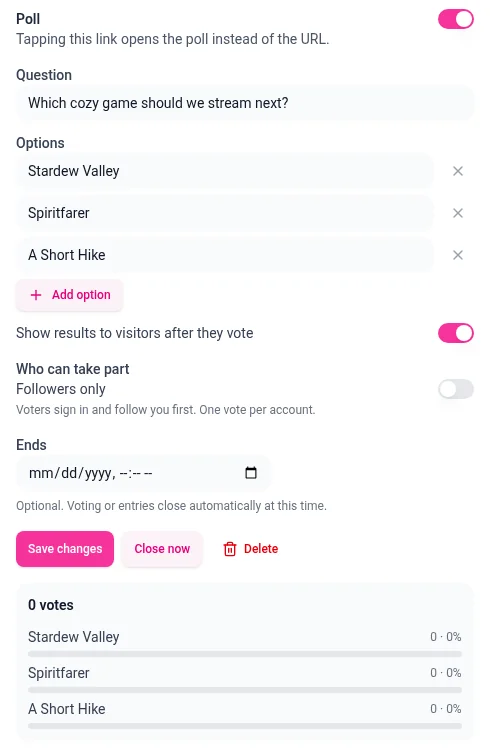
Fill in the Options. A poll needs at least 2 options and can have up to 6, with up to 80 characters each. Click + Add option for more (the button disappears once you have 6), or click the x next to an option to remove it.
Choose whether to Show results to visitors after they vote. It's on to start with.
Choose who can take part and when voting ends (see below).
Click Publish.
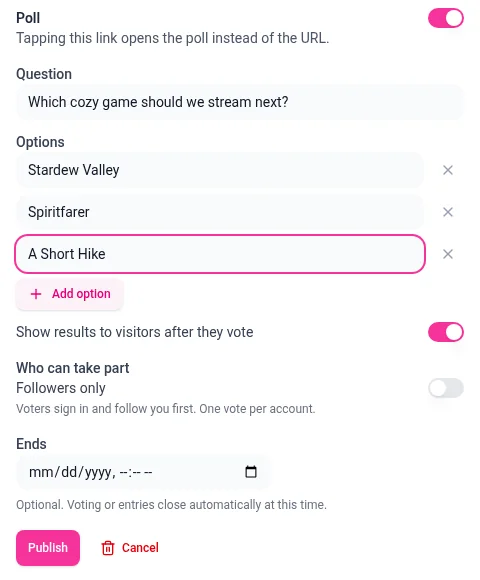
The Show on profile switch sits next to the Poll heading at the top of the form. It's on by default, so the poll appears on your profile as soon as you publish it. When it's off, the link button stays on your profile and opens its normal web address instead of the poll.
Create a giveaway
On the link card, click Poll or giveaway and choose Giveaway.
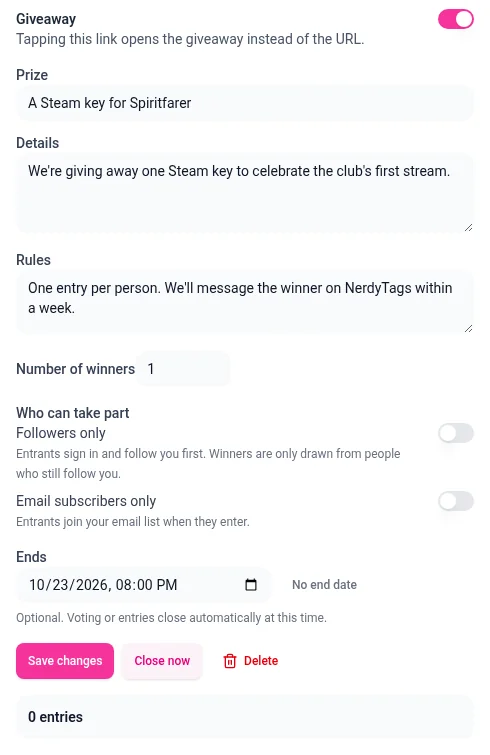
Enter the Prize, for example "A Steam key for Spiritfarer".
Add Details about the giveaway, and your Rules, such as who can enter and how you'll contact the winners.
Set the Number of winners, from 1 to 10. It's 1 to start with.
Choose who can take part and when entries close (see below).
Click Publish.
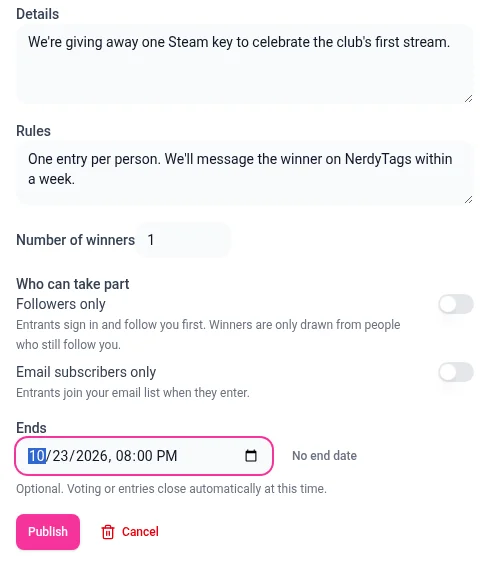
Just like a poll, the giveaway has a Show on profile switch at the top, and it's on by default.
Choose who can take part
Under Who can take part, you can limit your poll or giveaway. Both options are off to start with.
Option | Poll | Giveaway |
|---|---|---|
Followers only | Voters sign in and follow you first. One vote per account. | Entrants sign in and follow you first. Winners are only drawn from people who still follow you. |
Email subscribers only | Not available | Entrants join your email list when they enter. |
A poll remembers each visitor's vote, so they can't vote a second time.
Set an end time
Ends is optional. Pick a date and time, and voting or entries close automatically at that time. To remove the end time, click No end date. Leave it empty if you'd rather close things yourself with Close now (see below).
Once a poll or giveaway closes, it stops taking votes or entries. A giveaway closing doesn't pick winners. You always draw them yourself (see Draw giveaway winners below).
What visitors see
On your profile, a poll or giveaway link looks just like your other link buttons. Make sure the link is switched to Active, since new links start out Hidden.
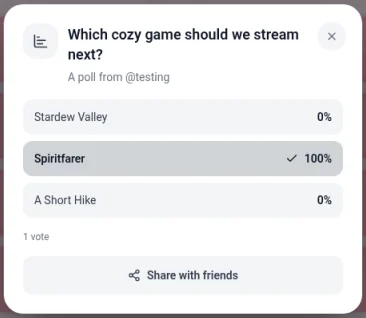
When someone taps a poll, a pop-up opens with your question, "A poll from @yourname" and a button for each option.
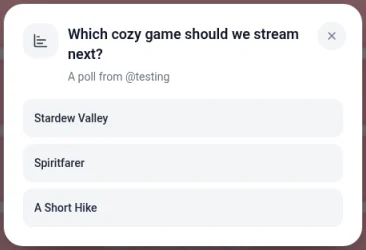
After they vote, they see the percentage for each option, a check mark next to their own vote, the total number of votes and a Share with friends button.
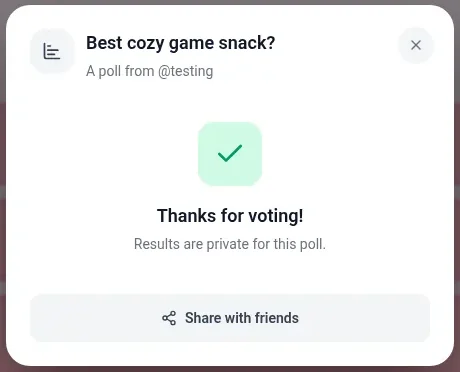
If you turned off Show results to visitors after they vote, voters see "Thanks for voting!" and "Results are private for this poll." instead, along with the Share with friends button.
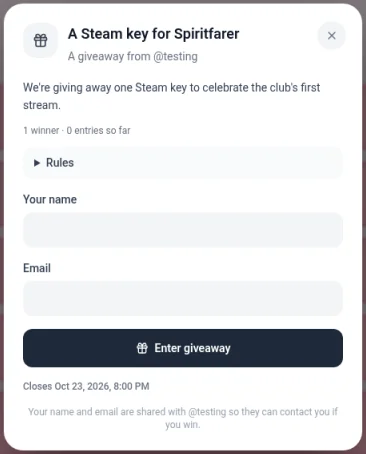
When someone taps a giveaway, a pop-up shows the prize, "A giveaway from @yourname", your details, the number of winners and entries so far, and your rules in a Rules section they can open. To enter, they fill in Your name and Email and tap Enter giveaway. If you set an end time, it's shown too, for example "Closes Oct 23, 2026, 8:00 PM".
The pop-up also tells entrants: "Your name and email are shared with @yourname so they can contact you if you win." Entrants' emails are never shown publicly.
After you draw winners, the giveaway on your profile lists them by first name and last initial, and a winner who opens it sees that they won.
Your followers get notified
When you publish a poll or giveaway, the people who follow you get notified, so it doesn't go unseen. Notifications go out on a schedule, so your followers hear about it shortly after, not the second you click Publish. That gives you time to finish tweaking things without anyone getting pinged about a half-made poll. Followers can turn these notifications off for your profile. See Discover, followers and messages.
Manage results and entries
Once a poll or giveaway is published, a small pink dot appears on the Poll or giveaway icon on its link card, so you can spot it at a glance.
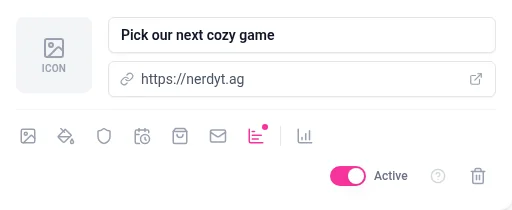
Click the icon to open the panel again. Your settings are at the top, with the results box below them. From there you can:
See results. A poll shows live results: the total number of votes, and the count and percentage for each option. A giveaway shows the number of entries and the list of entrants.
Edit it. Change anything in the form, then click Save changes. Once a poll option has votes, you can rename it but not remove it.
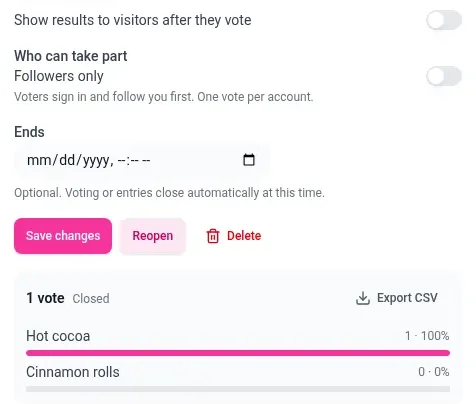
Close it. Click Close now to stop voting or entries straight away, without waiting for the end time. On a poll, the results then show Closed next to the vote count, and Close now turns into Reopen so you can open the poll again whenever you like.
Delete it. Click Delete and confirm. This deletes the poll or giveaway and all of its responses, and it can't be undone. The pink dot disappears, the link opens its web address again, and the panel goes back to the Poll and Giveaway choices so you can start a new one.
Only people who can manage your profile can see or export results and entries.
Export poll results
Once a poll has at least one vote, an Export CSV button appears in the top right of the results box. The file lists the option and time of each vote. Votes are anonymous, so it doesn't include who voted.
See and export giveaway entries
The results box in the giveaway panel shows the entry count and the list of entrants. Each row shows the entrant's name and email, plus their @username if they were signed in when they entered. On a followers-only giveaway, anyone who has unfollowed you since entering is marked Not following, and they won't be picked as a winner.
The list shows your newest 500 entries and scrolls. If you have more, a note lets you know the rest are in the export.
Once there's at least one entry, an Export CSV button appears in the top right of the results box. It downloads a file named giveaway-(link id).csv with every entry, in these columns:
Column | What it holds |
|---|---|
name | The entrant's name |
The entrant's email address | |
username | Their NerdyTags username, if they were signed in when they entered |
winner | "yes" for winners |
entered_at | When they entered, in UTC |
Draw giveaway winners
Winners are only drawn when you choose. Nothing happens automatically, even when the end date passes.
Open the giveaway's panel on the link. The Draw winners button appears once there's at least one entry.
Click Draw winners.
Confirm. Drawing winners closes the giveaway and can't be undone.
NerdyTags picks your chosen number of winners at random from the entrants. On a followers-only giveaway, it only picks people who still follow you. Winners get a trophy in the entry list and move to the top of it.
Winners aren't notified automatically. You need to contact each winner yourself by email, using the address in the entry list or the export. The panel reminds you of this too.
Tips
Keep poll questions short so they're easy to read on a phone.
Spell out in your Rules how and when you'll contact winners, and any limits such as region or age.
Set an end time so people know how long they have to take part, then come back to draw your winners.