
An NFC tag is a small chip, often inside a sticker, card or keychain. When someone holds their phone near it, their phone opens your profile. You can write your profile link to your own tags, or buy ready-made NFC products from the NerdyTags Store.
What you need
A compatible tag. NTAG213, NTAG215 and NTAG216 tags work with NerdyTags.
A device that can write NFC. Use Chrome on an Android phone, or the NerdyTags app. Other browsers, including Safari on iPhone, can't write tags. On those you'll see NFC Writing Not Available.
Get the app from the App Store or Google Play. The QR & NFC page also has Download Android App and Download iOS App buttons.
Write your link to a tag
On your phone, open your dashboard in Chrome on Android, or open the NerdyTags app.
Go to QR & NFC and choose the NFC tag tab.
Start writing, then hold the tag against the back of your phone and keep it still until your phone shows the tag has been written.
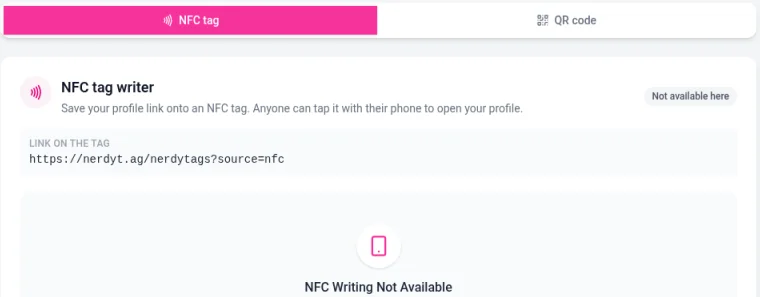
The page shows the link under LINK ON THE TAG before you write it. It's your profile address with ?source=nfc on the end, so taps are counted as NFC taps in Analytics.
For a step-by-step guide on the page itself, click How to Use NFC Tags.
Test your tag
Tap the tag with a phone that has NFC turned on. Your profile should open. Most recent iPhones and Android phones can read NFC tags, though some Android phones need NFC switched on in their settings.
Buy NFC tags and cards
The Store in your dashboard sells official NerdyTags NFC tags, cards and accessories. Use the All, On sale, In stock and Featured filters to browse.
Good to know
Changing your username changes your profile URL, so tags programmed with your old address stop working. Write them again with your new link.
Each profile has its own link. If you manage several profiles, switch to the right one before writing a tag.
Taps show up as NFC Taps in Analytics, separate from QR scans. See Understanding your analytics.