
Connect Pipedrive to an automation and NerdyTags adds your leads to Pipedrive for you. Each new subscriber and contact form submission becomes a lead in your Pipedrive Leads inbox, so your sales team can follow up from one place.
You'll set this up in NerdyTags Business under Automations. You'll also need a Pipedrive account where you can see your personal API token.
Step 1: Open the automation
In the sidebar, go to Automations, then create a new automation or open an existing one.
Under Send to apps, click Connect an integration.
On the Integrations card, click Connect Pipedrive.
Want to do more with the same automation, like getting notified or posting to chat? See Automation actions: notify, email, tag and post to chat.
A Connect Pipedrive dialog opens, asking you to paste a key from your Pipedrive account. It lists the steps to find one, and NerdyTags checks the key works before saving it.
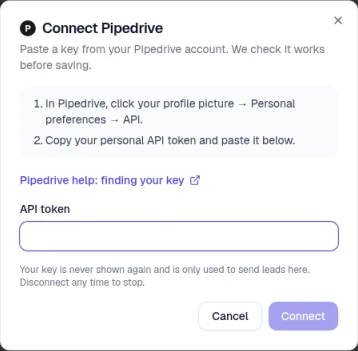
Keep this tab open while you find the key in Pipedrive. Your key is never shown again after you connect, and it's only used to send leads to Pipedrive. You can disconnect any time to stop.
Step 2: Copy your API token from Pipedrive
The dialog walks you through two steps. Here's each one in more detail.
1. Open your API settings
In a new tab, log in to Pipedrive. Click your profile picture, then go to Personal preferences and open the API tab. If you get stuck, the Pipedrive help: finding your key link in the dialog opens Pipedrive's own guide.
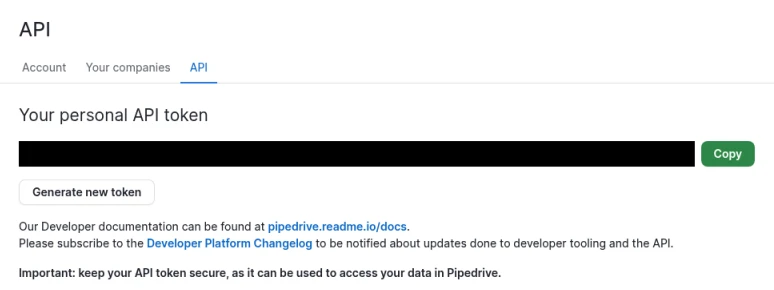
Don't click Generate new token. Your current token stops working when you generate a new one, which would break any connections already using it.
2. Copy and paste the token
Under Your personal API token, click Copy. Go back to NerdyTags, paste it into the API token field and click Connect.
Step 3: Check the connection
There's nothing to pick after you connect. There's no pipeline, stage or owner to choose. The Pipedrive card shows Synced, along with the Pipedrive account it creates leads in and what it sends: New subscribers, Form submissions.

Send subscribers you already have
When you connect, NerdyTags sets a start date. Only people who subscribe after that are sent automatically, and the card lets you know: "Only people who subscribe after this was set up are sent. Use 'Send existing subscribers' for earlier ones."
To send earlier subscribers too, click Send existing subscribers on the card. The button is there for 90 days after setup, and it sends subscribers from the last 90 days. You'll see how many people will be sent and can confirm before anything happens. Anyone already in your Pipedrive contacts is updated, not added twice.

When you click the button, a dialog shows how many people will be sent, and you can cancel or confirm:
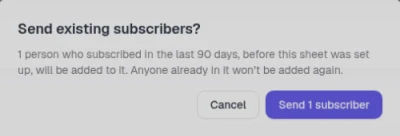
This example is from Google Sheets. The dialog's wording matches the app you're connecting (sheet, audience, list or contacts), so for Pipedrive it talks about your contacts. After you confirm, the start date line and the button disappear from the card.
Don't see the button? That means all your subscribers have already been sent, or setup was more than 90 days ago.
What gets sent to Pipedrive
New subscribers are added as a Pipedrive person, with their name and work email, plus a lead titled "New subscriber on @profile: Name."
Form submissions become a lead linked to that person, titled "Contact Me: email."
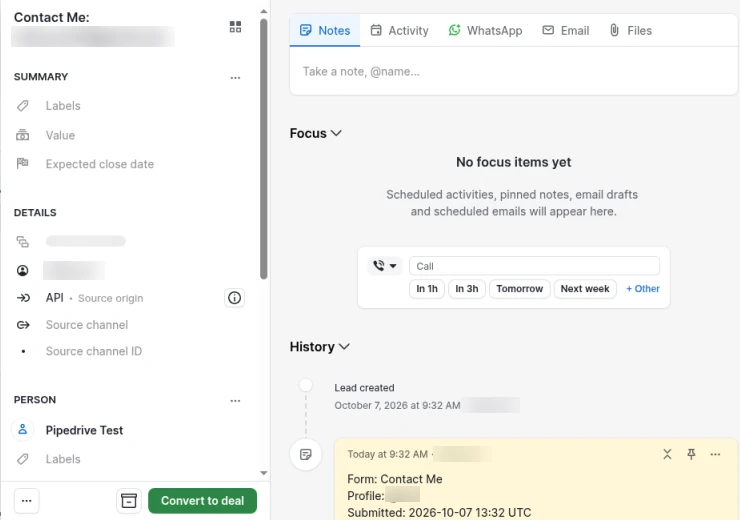
Form answers are saved as a note on the lead, so you can see the form, profile, submitted time (in UTC), email and answers at a glance.
Submissions without an email address are skipped.
Leads are owned by the Pipedrive user whose token you connected, and their source origin is API. NerdyTags creates leads only, not deals, so you can decide which ones to convert.
You'll find the new leads in your Pipedrive Leads inbox:

Open a lead to see the note NerdyTags created for the form submission:
Using HubSpot too, or want a spreadsheet of your leads? See Sending leads to HubSpot and Sending leads to Google Sheets.
Unsubscribes and deleted subscribers
When a subscriber unsubscribes or is deleted in NerdyTags, their Pipedrive person's marketing status is set to Unsubscribed. The person and their leads stay in Pipedrive.
This only applies to people who are already in Pipedrive.
For company connections, if someone is still subscribed on another profile that feeds the same connection, they aren't marked as unsubscribed.
Marketing status needs Pipedrive's Campaigns add-on. Without Campaigns, this step is skipped and no error is shown, so nothing appears to change.
Manage the connection
On the connected Pipedrive card you can:
Use the Enabled switch to pause or resume sending leads.
Click Sync now to re-send recent leads right away. Sync now only re-sends people who subscribed after the start date, or from the last 90 days once you've used Send existing subscribers. It never sends your whole history.
Click the pencil next to the name to rename the connection.
Click the trash icon to disconnect Pipedrive.
Check that it's working
Run test on the automation is a dry run. It doesn't send anything to Pipedrive or other apps.
To confirm the connection, wait for a real lead (or subscribe or fill in a form on one of your profiles yourself), then check Recent runs on the automation, which shows the result for each app. You can also look for the new lead in your Pipedrive Leads inbox.