
Connect Google Sheets to an automation and NerdyTags keeps a spreadsheet of your leads for you. New email subscribers and contact form submissions are added as rows, so your team can sort, filter and share them in Google Sheets.
You'll set this up in NerdyTags Business under Automations.
Step 1: Create the automation
In the sidebar, go to Automations and click New automation.
Give it a Name, for example "Leads to Google Sheets."
Under When, choose the triggers you want: New email subscriber, New form submission, or both.
Under Only if, add filters if you only want some leads (for example, specific profiles or forms). Leave it open to send every lead.
Under Send to apps, click Connect an integration.
The automation is created first, then you're taken to its Integrations card, where you can connect apps.
Step 2: Connect your Google account
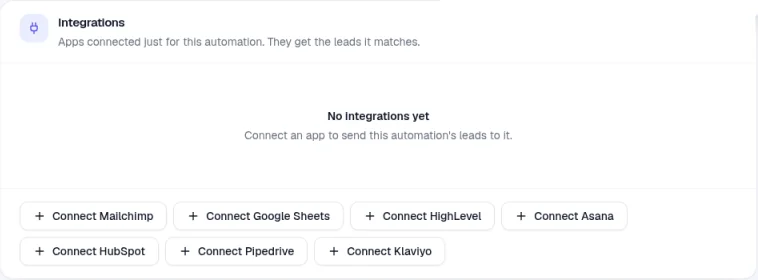
On the Integrations card, click Connect Google Sheets. You'll find it alongside the other apps you can connect.
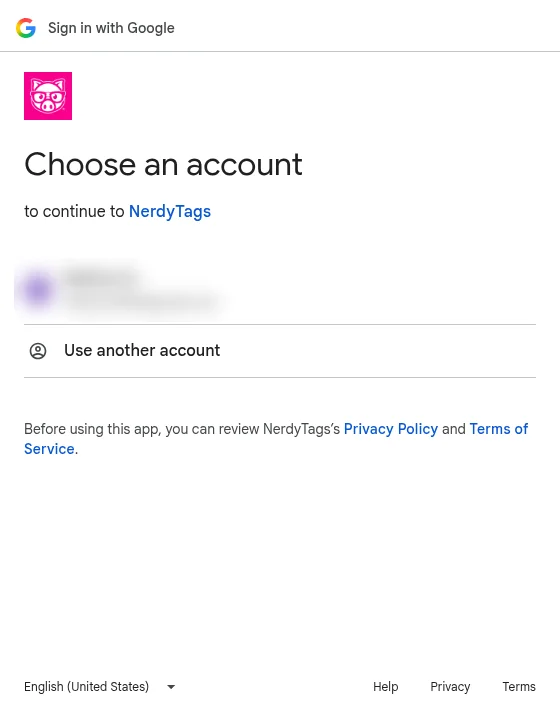
A Google sign-in window opens. Choose the Google account you want to use.
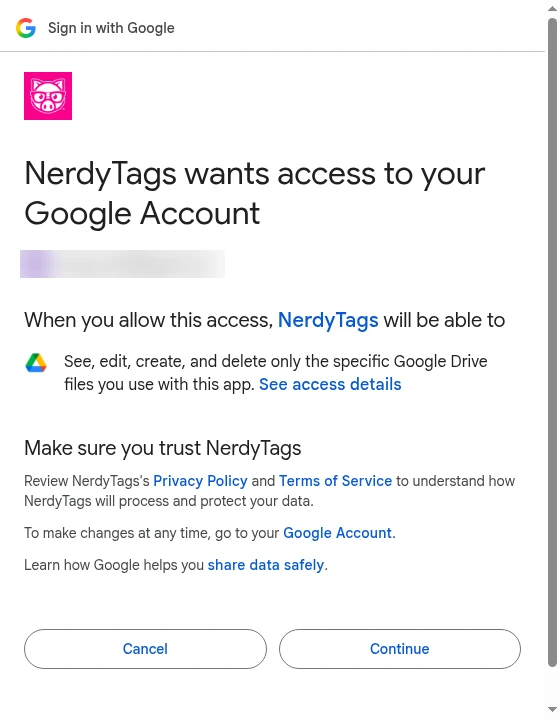
Next, review the access request and click Continue. NerdyTags only asks to see and edit the files it creates. It can't open or change any other files in your Google Drive.
Step 3: Create your spreadsheet
Back in NerdyTags, the Google Sheets card shows Needs setup. Type a name for your spreadsheet (the placeholder is Subscribers) and click Create sheet.
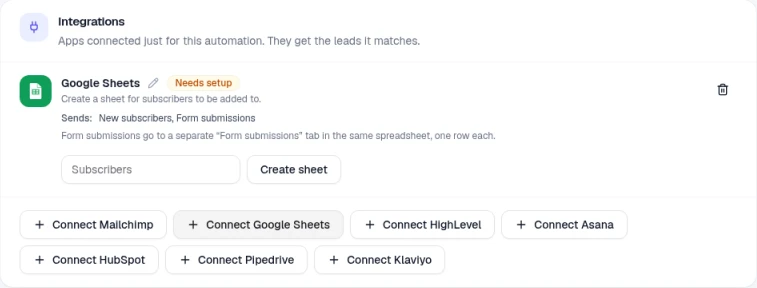
NerdyTags creates a new spreadsheet in your Google Drive. You can't choose an existing sheet or map your own columns. NerdyTags always creates and manages its own spreadsheet, so the layout stays consistent.
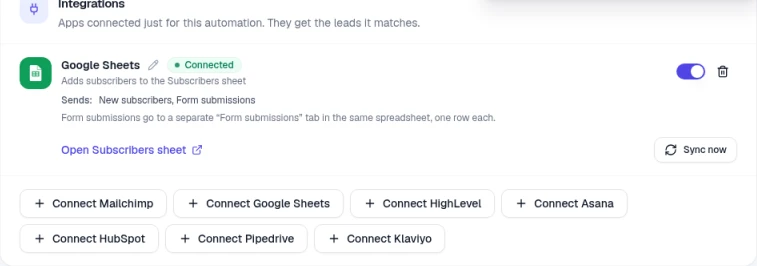
Once it's ready, the card shows Connected.
Send subscribers you already have
When you connect, NerdyTags sets a start date. Only people who subscribe after that are sent automatically, and the card lets you know: "Only people who subscribe after this was set up are sent. Use 'Send existing subscribers' for earlier ones." If you create a new sheet (or connect Google Sheets again), it starts fresh from that moment, so the new sheet starts empty.
To send earlier subscribers too, click Send existing subscribers on the card. The button is there for 90 days after setup, and it sends subscribers from the last 90 days. You'll see how many people will be sent and can confirm before anything happens. Anyone already in your sheet is updated, not added twice.

When you click the button, a dialog shows how many people will be sent, and you can cancel or confirm:
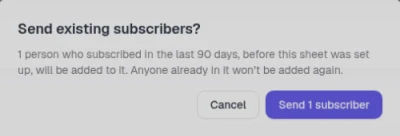
The dialog's wording matches the app you're connecting, so it talks about your sheet, audience, list or contacts. After you confirm, the start date line and the button disappear from the card.
Don't see the button? That means all your subscribers have already been sent, or setup was more than 90 days ago.
What goes into the spreadsheet
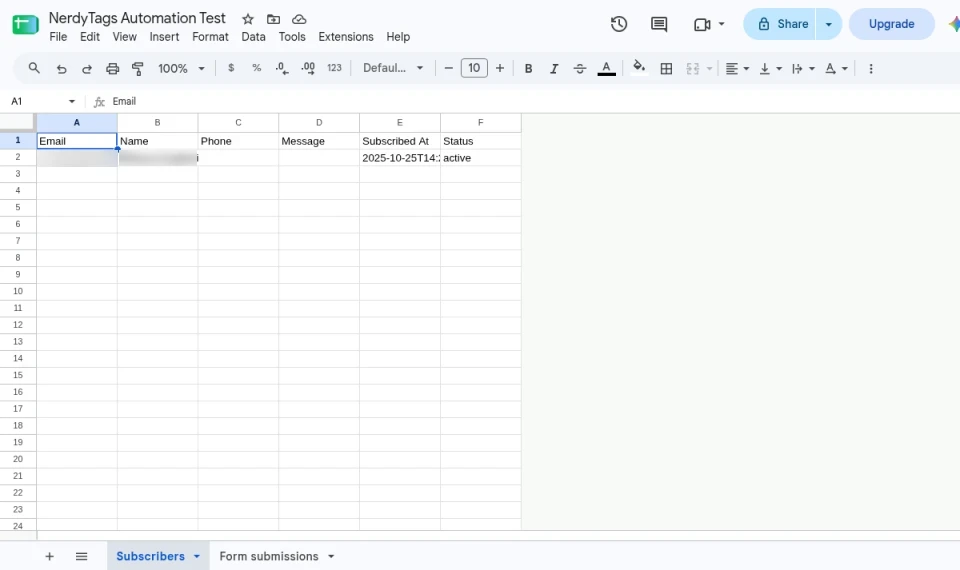
Subscribers tab
Each new email subscriber gets a row on the Subscribers tab with these columns:
Column | What it holds |
|---|---|
The subscriber's email address | |
Name | Their name, if they gave one |
Phone | Their phone number, if they gave one |
Message | Any message they left |
Subscribed At | When they subscribed |
Status | For example, active |
Form submissions tab
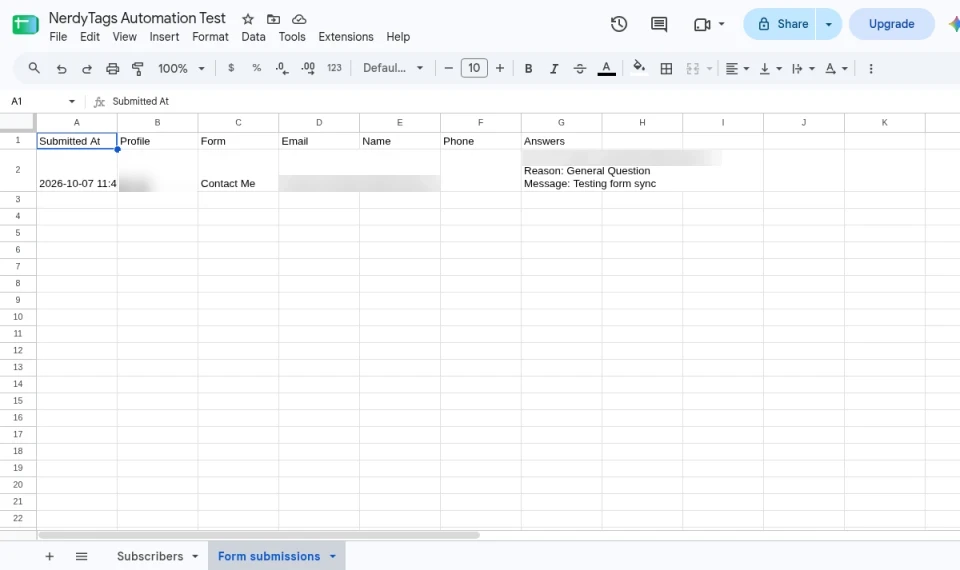
Contact form submissions go to a separate Form submissions tab in the same spreadsheet, one row each. This tab is created the first time someone submits a form, so don't worry if you don't see it right away.
Column | What it holds |
|---|---|
Submitted At | When the form was sent |
Profile | The profile the form is on |
Form | The form's name |
The sender's email address | |
Name | The sender's name |
Phone | The sender's phone number |
Answers | All of the form's answers |
All times in the spreadsheet are in UTC.
When leads show up
New leads sync automatically, usually within a couple of minutes.
Already have subscribers from before you connected? Use Send existing subscribers (see above). Sync now only re-sends people who subscribed after the start date, or from the last 90 days once you've used Send existing subscribers. It never sends your whole history.
Manage the connection
On the connected Google Sheets card you can:
Use the on/off switch to pause or resume sending leads.
Click Open Subscribers sheet to open the spreadsheet in Google Sheets.
Click Sync now to re-send recent leads right away.
Click the pencil next to the name to rename the connection.
Click the delete icon to remove the connection.
Check that it's working
Run test on the automation is a dry run. It doesn't send anything to Google Sheets or other apps, and test runs don't appear in Recent runs.
To confirm the connection, wait for a real lead to come in (or subscribe to one of your profiles yourself), then check Recent runs on the automation and look for the new row in your spreadsheet.
If a sync fails
Sometimes Google takes too long to respond. When that happens, the card shows Sync failed and you'll get a notification. NerdyTags tries again on its own, so there's usually nothing you need to do. If the error sticks around, try Sync now.
Deleting subscribers
When you delete a subscriber in NerdyTags, they're also removed from your connected integrations, including Google Sheets.