
Every automation has a Then section where you choose what happens when a new lead matches. You can notify teammates, send an email, tag the lead, post to a chat app, or use any combination.
To add actions, open an automation under Automations in NerdyTags Business, or create a new one. New to automations? Start with Automations in NerdyTags Business.
Notify members
Send an in-portal notice to the right people when a lead comes in.
Turn on Notify members.
Pick the members, groups or roles who should hear about it.
Save the automation.
Only people who can see that profile's leads are notified. If you pick someone who doesn't have access to the profile, they won't get the notice.
Notices appear on the Notifications page. Click the bell at the top of the portal to see the latest ones.
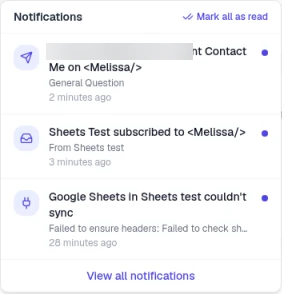
Send an email
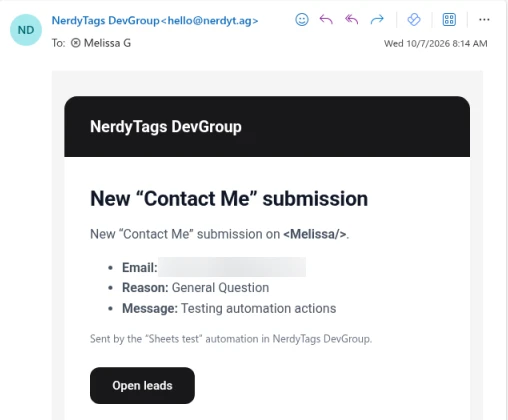
Email the lead's details to anyone, including people outside your team.
Turn on Send an email.
Under Send to, add up to 10 email addresses.
Add a Subject if you like. If you leave it blank, the subject uses the lead's name.
Save the automation.
You don't need to write the message. NerdyTags fills it in with the lead's details and adds an Open leads button. The email comes from your organization's name, sent through [email protected].
Tag the lead
Tags help you sort and filter leads later.
Turn on Tag the lead.
Add up to 5 tags.
Save the automation.
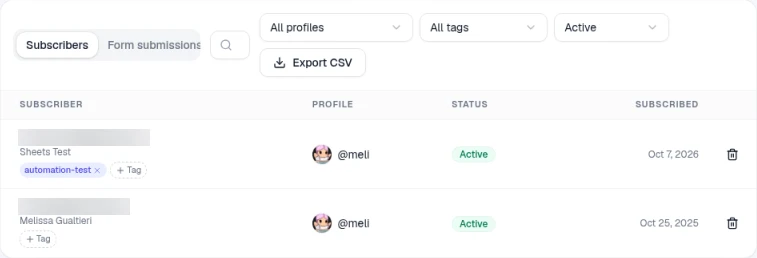
Tags show on each lead under Leads, and you can filter by them there.
Post to chat
Post a message about each new lead to Slack, Microsoft Teams or Discord.
Turn on Post to chat and choose your chat app.
In that app, create an incoming webhook for the channel you want, then copy its URL.
Paste the URL into the webhook URL field in NerdyTags.
Choose whether to turn on Include form answers. When it's off, the message includes just the lead's name, email and a link.
Save the automation.
Zapier and other apps
Zapier connects through webhooks. On the automation, click Add a webhook and follow the steps in Sending leads to Zapier, Make and other apps with webhooks.
Test your actions
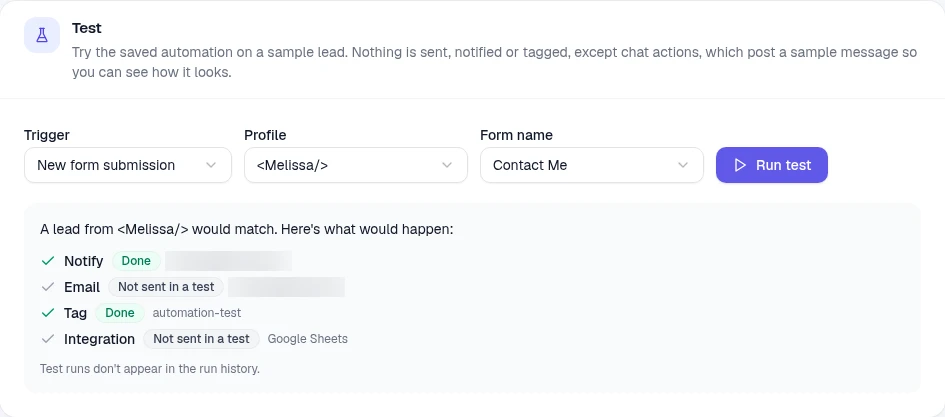
At the bottom of the automation, Run test shows what would happen for a sample lead. Pick a trigger and a profile, then click Run test. Emails and apps aren't sent in a test, but a chat action posts a sample message to your channel. Test runs also don't appear in Recent runs.
Emails and messages that don't come from automations
A couple of things can look similar but work separately:
Contact form emails to the profile owner: when someone sends a profile's contact form, the profile owner gets an email from the profile's own notification settings. That email isn't part of your automation, and it keeps coming even if you don't add a Send an email action.
Inbox: Inbox holds direct messages sent to a profile. Form leads and automation notices don't go there. Find leads under Leads and notices on the Notifications page.