
Add a Post to chat action to an automation and NerdyTags posts a message to your Microsoft Teams channel whenever a new lead comes in. Your team sees each new subscriber or form submission right where they're already talking, with a link to open your leads in NerdyTags.
You'll set this up in NerdyTags Business under Automations. You'll also need a Teams channel where you can add a workflow. If your organization limits Workflows or Power Automate, an admin may need to allow it.
Microsoft Teams is added as an action, not an integration, so it doesn't count toward the 5 integrations each automation can have. To learn about the other actions, like notifying members or tagging the lead, see Automation actions: notify, email, tag and post to chat.
Step 1: Add a Post to chat action
In the sidebar, go to Automations, then create a new automation or open an existing one.
In the list of actions, click Post to Slack, Teams or Discord.
A Post to chat action is added. Choose Microsoft Teams.
The action buttons sit below any actions you've already added, just above Send to apps:

Once you choose Microsoft Teams, the action shows three short steps for getting a webhook URL, a How to get a Microsoft Teams webhook URL link to Microsoft's help article, and a Microsoft Teams webhook URL field.
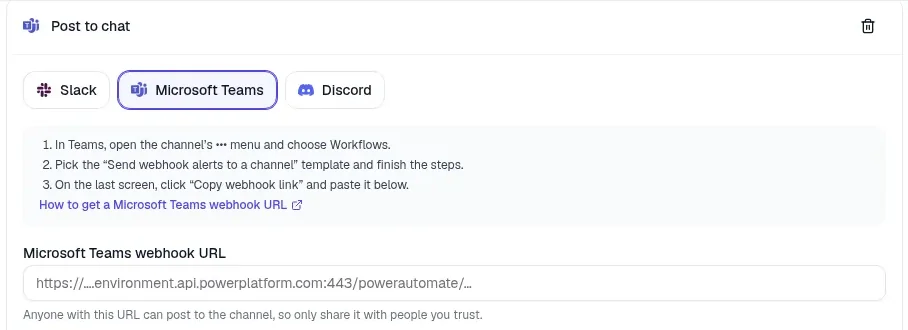
Keep this tab open while you create the webhook in Teams.
Step 2: Create a webhook in Teams
A webhook gives NerdyTags a way to post to one channel in your team. In Teams, you create it with a ready-made template in Workflows.
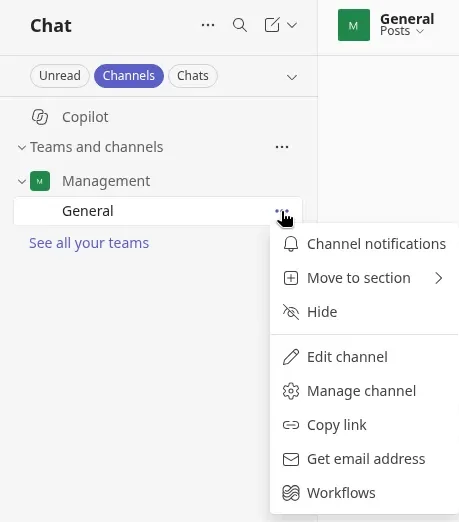
In Teams, hover over the channel you want leads posted to, click its ••• menu, then choose Workflows.
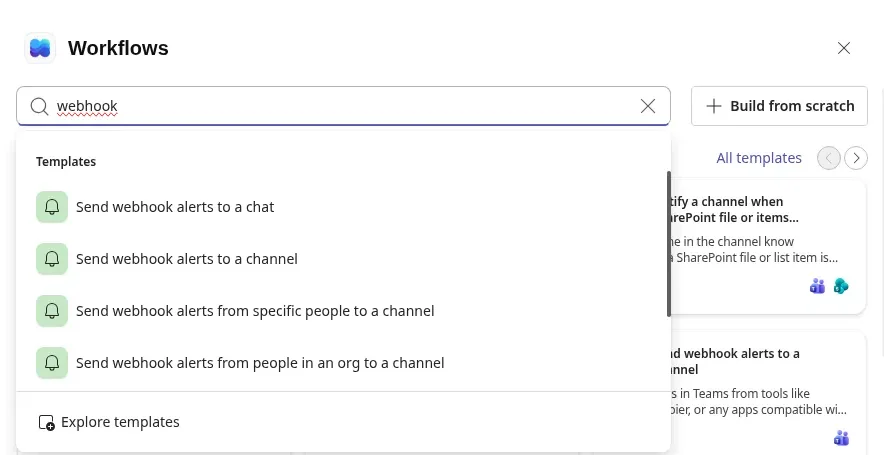
In the Workflows dialog, type "webhook" in the Find templates search box and choose Send webhook alerts to a channel. There are similar templates, like Send webhook alerts to a chat and Send webhook alerts from specific people to a channel, so make sure you pick the channel one.
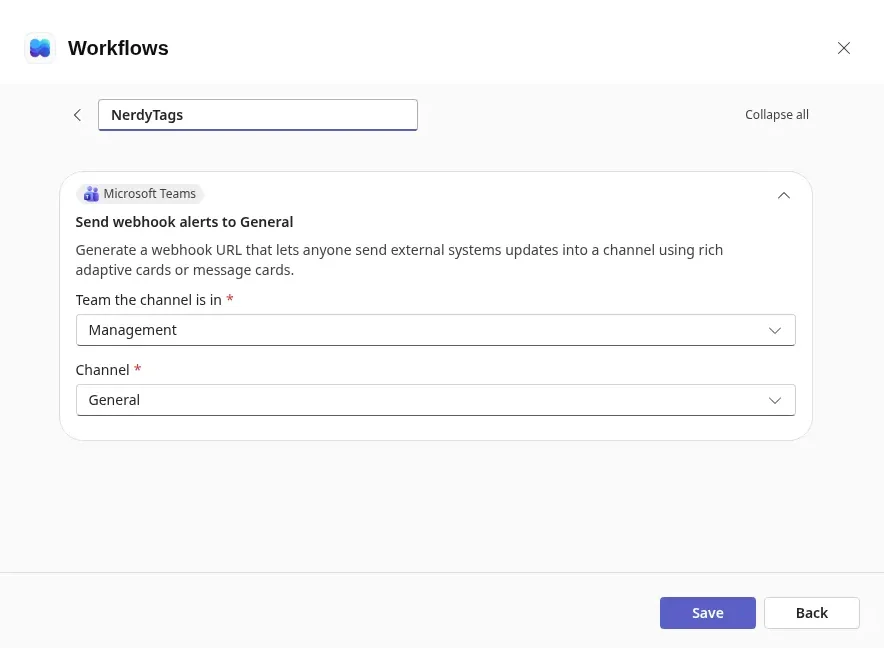
The setup screen is titled Send webhook alerts to followed by your channel's name. Team the channel is in and Channel are already filled in, so just check they're right.
To give the workflow a name your team will recognize, like NerdyTags, click the Untitled workflow title at the top and type the new name. There's no separate name field.
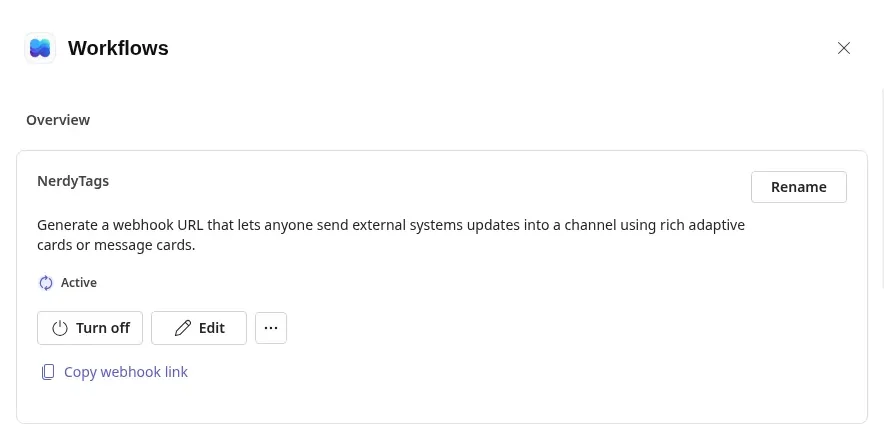
Click Save. Teams shows "Still setting up your workflow" for about 15 seconds, then opens the workflow's Overview, where it's marked Active.
Click Copy webhook link.
Here's the channel's menu, with Workflows at the bottom:
The template search, with Send webhook alerts to a channel second in the list:
The setup screen, with the workflow renamed to NerdyTags:
And the workflow's Overview, with the Copy webhook link button:
Teams doesn't show the URL on the page. It copies it straight to your clipboard. The URL looks like https://...environment.api.powerplatform.com/.... Anyone with this URL can post to the channel, so only share it with people you trust.
Don't see Workflows in the channel's menu, or can't save the workflow? Your organization may limit Workflows or Power Automate. Ask a Teams admin to allow it for you.
Step 3: Paste the URL and save
Back in NerdyTags, paste the URL into the Microsoft Teams webhook URL field.
Choose whether to keep Include form answers on. It's on by default, so posts include every answer from your form. Turn it off to post only the name, email and a link to the lead, keeping other answers out of the channel.
Click Save changes on the automation. You'll see Automation saved.

Send a test post
At the bottom of the automation, Run test shows what would happen for a sample lead. Pick a trigger and a profile, then click Run test.
Emails and apps aren't sent in a test, but the Microsoft Teams action posts a sample message to your channel, so it's an easy way to check the webhook works. The sample uses example details, like the email [email protected] and the name Jane Doe. Test runs don't appear in Recent runs.
What the posts look like
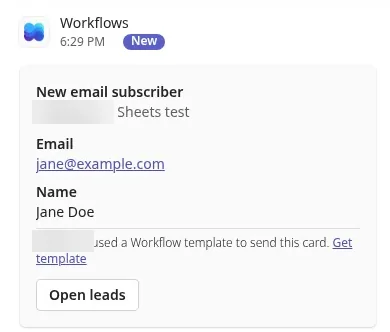
Each post is sent by Workflows and has:
A title, which depends on the trigger.
The profile and automation: the name of the profile the lead came from, then the automation's name (like Sheets test).
The lead's details, like their Email and Name.
A footer that says "Your name used a Workflow template to send this card," with a Get template link.
An Open leads button that opens your organization's Leads page in NerdyTags Business.
For a new subscriber, the title is New email subscriber, followed by their Email and Name.
For a form submission, the title includes the form's name, like New "Contact Me" submission. When Include form answers is on, the post lists the Form, the person's Name and Email, and their answers, such as Message:
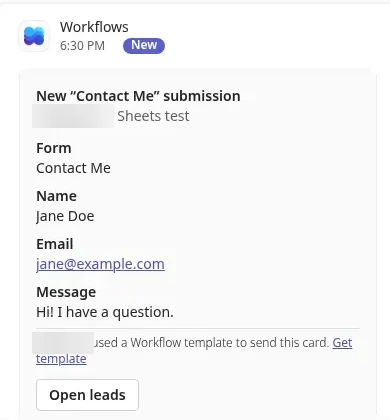
If you turned off Include form answers, form posts show just the person's name, email and the Open leads button.
Why posts come from Workflows
Every post sent through a Teams Workflows webhook shows Workflows as the sender, with a footer naming whoever set up the workflow. Microsoft doesn't let the message choose a different sender name or icon, so the posts can't say NerdyTags.
Because the footer shows the person who created the workflow, your team may prefer not to have a personal name there. In that case, ask someone else to set up the workflow, such as a shared or admin account.
To tell NerdyTags posts apart from other workflow posts, look at the card itself rather than the sender. It still has the lead title, like New email subscriber, the profile and automation names, the lead's details and the Open leads button.
When posts are sent
NerdyTags posts to Teams every time the automation runs on its trigger. Depending on how the automation is set up, that's each new subscriber, each form submission, or both.
Stop posting to Microsoft Teams
You can stop the posts in either app:
In NerdyTags: open the automation, click the trash icon on the Post to chat action, then click Save changes.
In Teams: open the workflow's Overview, either from Your workflows in the channel's Workflows dialog or from the Workflows app. Click Turn off to pause it, or delete the workflow if you no longer need it. NerdyTags can't post to the channel after that, so remember to remove the action from the automation too, or paste in a new webhook URL.
Messages already posted stay in the channel.