
Connect Asana to an automation and NerdyTags creates a follow-up task for each new subscriber and form submission. Tasks land in the Asana project you choose, with the person's details in the description, so your team always knows who to get back to.
You'll set this up in NerdyTags Business under Automations. You'll also need an Asana account with access to the project you want tasks to go to. There's no API key to copy: you approve the connection in Asana itself.
Step 1: Open the automation
In the sidebar, go to Automations, then create a new automation or open an existing one.
Under Send to apps, click Connect an integration.
On the Integrations card, click Connect Asana.
Each automation can have up to 5 integrations, so you can send the same leads to Asana and other apps at once.
Want to do more with the same automation, like getting notified or posting to chat? See Automation actions: notify, email, tag and post to chat.
Step 2: Allow access in Asana
Asana's Grant Permission screen opens, saying "NerdyTags (nerdyt.ag) is requesting permission to use Asana Connect to access your Asana account." If you aren't logged in to Asana, you'll be asked to log in first.
The screen lists what NerdyTags can do:
Access your name and email address
Access your tasks, projects, and workspaces
Create and modify tasks, projects, and comments on your behalf
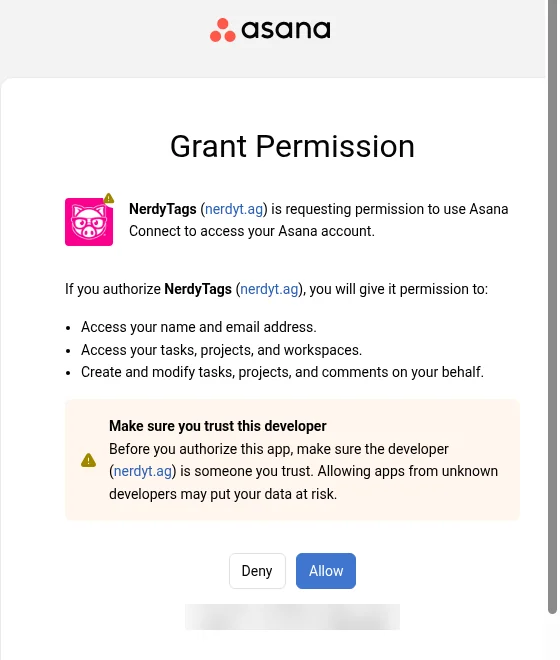
Click Allow. You're brought back to NerdyTags with the message "Connected. Finish setting it up below." and the Asana card shows Needs setup.
If you've authorized NerdyTags in Asana before, it may connect straight away without showing this screen.
Step 3: Choose a project
Until you pick a project, the card says: "Choose the project follow-up tasks go to. People who subscribe after you pick a project get a task, once each. Use "Send existing subscribers" for earlier ones."

Open the Choose a project dropdown and pick the project your tasks should go to, like NerdyTags Leads in this example. You'll see Project saved.
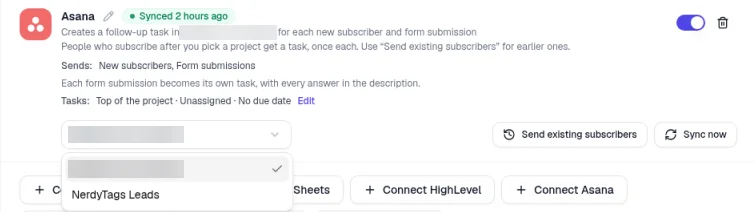
Step 4: Check the connection
The Asana card now says it "Creates a follow-up task in" your project "for each new subscriber and form submission", and what it sends: New subscribers, Form submissions. Both are sent automatically.
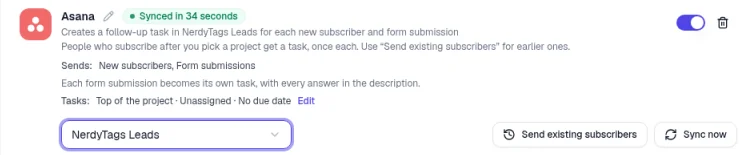
The Tasks line shows how new tasks are set up. By default they're added to the Top of the project, Unassigned, with No due date. Click Edit to change where tasks go in the project, who they're assigned to, and the due date.
Send subscribers you already have
Only people who subscribe after you pick a project get a task automatically, and the card lets you know.
To send earlier subscribers too, click Send existing subscribers on the card. The button is there for 90 days after setup, and it sends subscribers from the last 90 days. You'll see how many people will be sent and can confirm before anything happens. Each person still only gets one task.

When you click the button, a dialog shows how many people will be sent, and you can cancel or confirm:
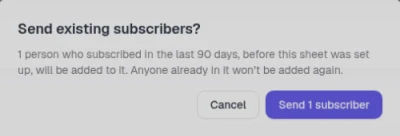
This example is from Google Sheets. For Asana, the dialog works the same way: it shows how many people will be sent and asks you to confirm. After you confirm, the button disappears from the card.
Don't see the button? That means everyone has already been sent, or setup was more than 90 days ago.
What gets sent to Asana
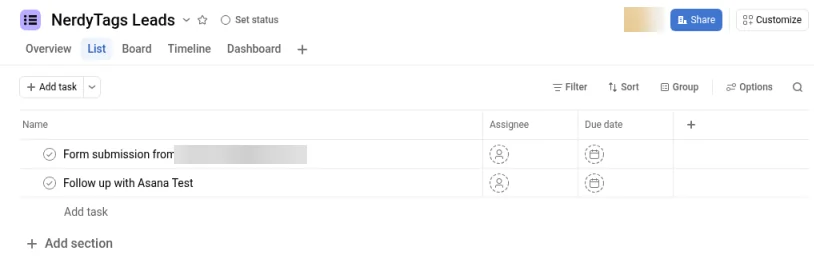
Each new subscriber becomes a task called Follow up with and their name, for example "Follow up with Alex Rivera". Each person gets a task once, so you won't see duplicates.
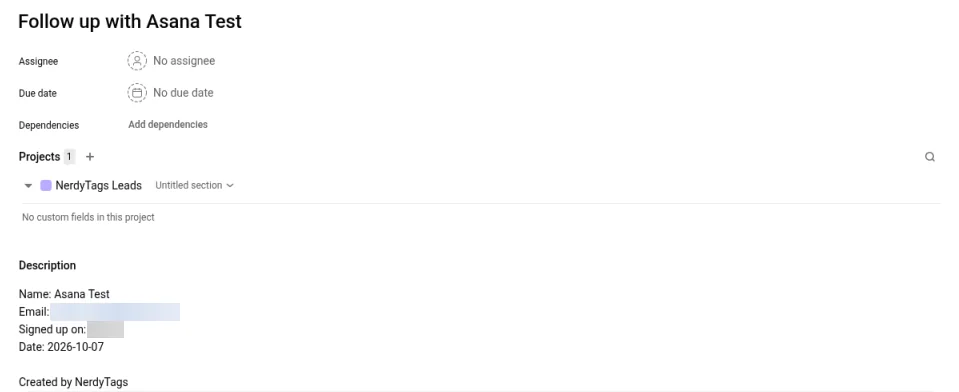
The task description looks like this:
Name: Alex Rivera
Email: [email protected]
Signed up on: @yourprofile
Date: 2026-10-07

Created by NerdyTags
Here are new tasks in an Asana project:
And a follow-up task opened in Asana, with the subscriber's details in the description:
How form submissions show up in Asana
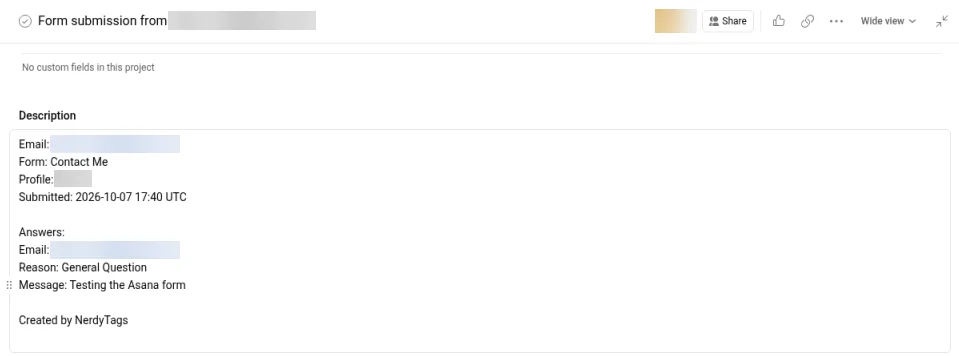
Each form submission becomes its own task, called Form submission from and the person's email, for example "Form submission from [email protected]". Every answer is included in the description:
Email: [email protected]
Form: Contact Me
Profile: @yourprofile
Submitted: 2026-10-07 17:40 UTC

Answers:
Email: [email protected]
Reason: General Question
Message: I'd love to know more about your services

Created by NerdyTags
When tasks show up
New subscribers and form submissions are sent automatically, usually within a couple of minutes. Subscribers from before you picked a project are only sent when you use Send existing subscribers.
Sync now only re-sends people who subscribed after the start date. It never sends your whole history.
Manage the connection
On the connected Asana card you can:
Use the project dropdown to choose a different project.
Click Edit next to Tasks to change where tasks go, who they're assigned to, and the due date.
Use the on/off switch to pause or resume sending.
Click Sync now to re-send recent subscribers right away.
Click the pencil next to the name to rename the connection.
Disconnect Asana
To stop sending tasks, click the trash icon (Disconnect) on the Asana card and confirm. The Disconnect Asana? prompt says "New subscribers will stop syncing. Anything already sent stays where it is."
Disconnecting in NerdyTags doesn't remove NerdyTags from your Asana account. To fully remove its access:
In Asana, click your profile photo, then Settings.
Open the Apps tab.
Next to NerdyTags under Authorized Apps, click Deauthorize.
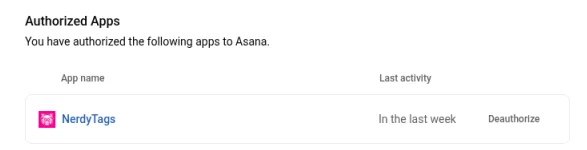
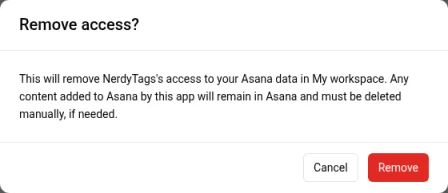
Asana asks you to confirm and lets you know that tasks NerdyTags already added stay in Asana. Click Remove.
Check that it's working
Run test on the automation is a dry run. It doesn't send anything to Asana or other apps.
To confirm the connection, wait for a real lead (or subscribe or fill in a form on one of your profiles yourself). Then open your project in Asana and look for the new Follow up with or Form submission from task.