
The Asana integration creates a follow-up task in one of your Asana projects for each new lead, so nobody forgets to get back to them.
Coming soon
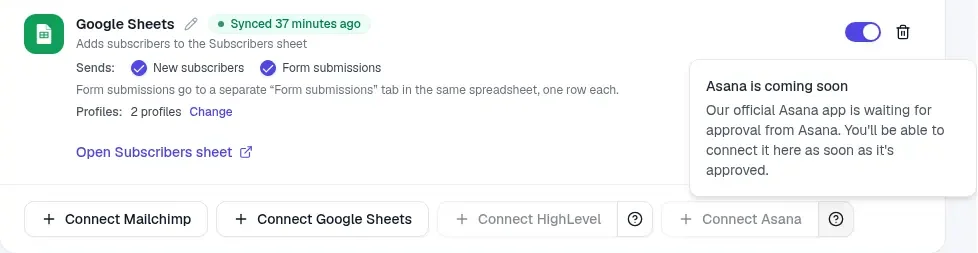
Our official Asana app is waiting for approval from Asana. Until it's approved, the Connect Asana button in NerdyTags Business is greyed out. The ? next to it explains why. You'll be able to connect Asana as soon as the app is approved.
Before you start
Asana is only in NerdyTags Business. You connect it in the NerdyTags Business portal, not from a personal NerdyTags dashboard.
Your organization needs to be active, with a paid subscription or complimentary seats. When a complimentary period ends, the organization becomes read-only and sending stops.
You need the Manage email subscribers, integrations and Shopify permission. See Roles and permissions in NerdyTags Business.
There's no API key to copy. You sign in to Asana and approve access.
Where to connect it
You can connect Asana in two places:
For the whole company: on Settings > Integrations. Every company profile sends its leads there, unless a profile turns off Send to company integrations.
For one profile: in the profile editor, on the Subscribers tab, in the Integrations panel. This connection is for that profile only.
See Company tracking and integrations for how company and profile integrations work together.
Connect Asana
Once the app is approved:
Click Connect Asana.
Sign in to Asana and approve access.
Choose a project. Projects from all your Asana workspaces are listed.
Choose what it sends: Subscribers from your email signup form, Form submissions from your contact forms, or both.
You can change what it sends at any time in the connection's settings. Connections set up before this choice was added send both.
You can connect Asana more than once, for example to send different profiles to different projects. Extra connections are numbered automatically, like "Asana 2", and you can rename them.
Task settings (optional)
Section: the section of the project new tasks go in.
Assignee: someone from that Asana workspace to assign tasks to.
Due date: from 0 to 60 days after the task is created.
What the tasks look like
Subscribers
Each new subscriber gets one task, titled "Follow up with" and their name or email.
The task includes their name, email, phone, the profile they signed up on and the date.
There's one task per email address, ever. If someone signs up again, they don't get a second task.
Tasks are only created for people who sign up after you choose the project. If you change the project, it starts fresh from then. Earlier subscribers aren't added.
Form submissions
Each submission gets one task, titled "Form submission from" and the person's name.
The task includes their contact details, the form name, the profile and all of their answers.
A submission never creates two tasks.
Every task ends with "Created by NerdyTags".
If the connection stops working
If your Asana sign-in expires, the connection shows an error asking you to disconnect and connect again. Do that to start creating tasks again.