
The HighLevel integration (also known as GoHighLevel or LeadConnector) adds your NerdyTags leads to HighLevel as contacts. It can also create opportunities in one of your sales pipelines.
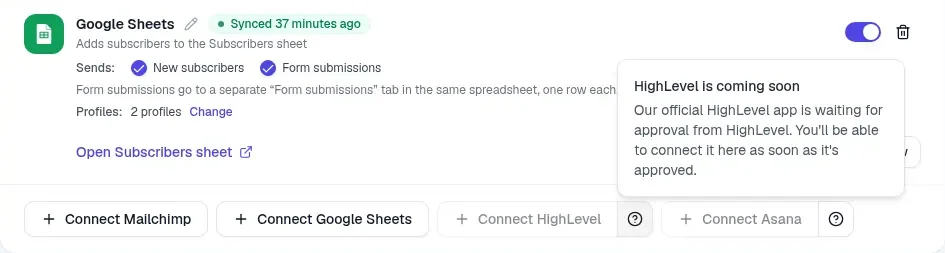
Coming soon
Our official HighLevel app is waiting for approval from HighLevel. Until it's approved, the Connect HighLevel button in NerdyTags Business is greyed out. The ? next to it explains why. You'll be able to connect HighLevel as soon as the app is approved.
Before you start
HighLevel is only in NerdyTags Business. You connect it in the NerdyTags Business portal, not from a personal NerdyTags dashboard.
Your organization needs to be active, with a paid subscription or complimentary seats. When a complimentary period ends, the organization becomes read-only and sending stops.
You need the Manage email subscribers, integrations and Shopify permission. See Roles and permissions in NerdyTags Business.
You connect a HighLevel sub-account (location). Agency-level accounts can't be connected.
There's no API key to copy. You sign in to HighLevel and approve access.
Where to connect it
You can connect HighLevel in two places:
For the whole company: on Settings > Integrations. Every company profile sends its leads there, unless a profile turns off Send to company integrations.
For one profile: in the profile editor, on the Subscribers tab, in the Integrations panel. This connection is for that profile only.
See Company tracking and integrations for how company and profile integrations work together.
Connect HighLevel
Once the app is approved:
Click Connect HighLevel.
Sign in to HighLevel and approve access.
Pick the sub-account (location) to send leads to.
Choose what it sends: Subscribers from your email signup form, Form submissions from your contact forms, or both.
After you connect, the connection shows the linked sub-account. You can change what it sends at any time in the connection's settings. Connections set up before this choice was added send both.
You can connect HighLevel more than once, for example to send different profiles to different sub-accounts. Extra connections are numbered automatically, like "HighLevel 2", and you can rename them.
What HighLevel receives
Subscribers
Each subscriber is added to HighLevel as a contact, or updated if the contact already exists.
Their name, email and phone are filled in, and the contact's source is set to "NerdyTags".
Active subscribers get a tag. The default is
nerdytags. You can pick an existing HighLevel tag or type your own instead.If someone unsubscribes, they get the
nerdytags-unsubscribedtag and the main tag is removed.Tags the contact already has in HighLevel are kept.
Form submissions
The person who filled in the form is added as a contact. They're matched to an existing contact by email, or by phone if there's no email.
They get the main tag plus
nerdytags-form.Their answers are added to the contact as a note, with the form name and the profile it came from.
Submissions with neither an email address nor a phone number are skipped.
Create opportunities in a pipeline (optional)
HighLevel can also create an opportunity for new leads.
Pick the pipeline and stage for new opportunities.
Choose what creates one: form submissions, new subscribers, or both.
Opportunities are named after the person, for example Jane Smith - Contact form or Jane Smith - new subscriber on @profile.
A few things to know:
Subscriber opportunities are only created for people who subscribe after you turn this on. Earlier subscribers aren't added.
Each person gets one subscriber opportunity at most.
If your HighLevel connection was made before opportunities were available, disconnect it and connect again to use them.
If the connection stops working
If your HighLevel sign-in expires, the connection shows an error asking you to disconnect and connect again. Do that to start sending leads again.